Notion Dashboard Guide: What to Put On It and What to Leave Off
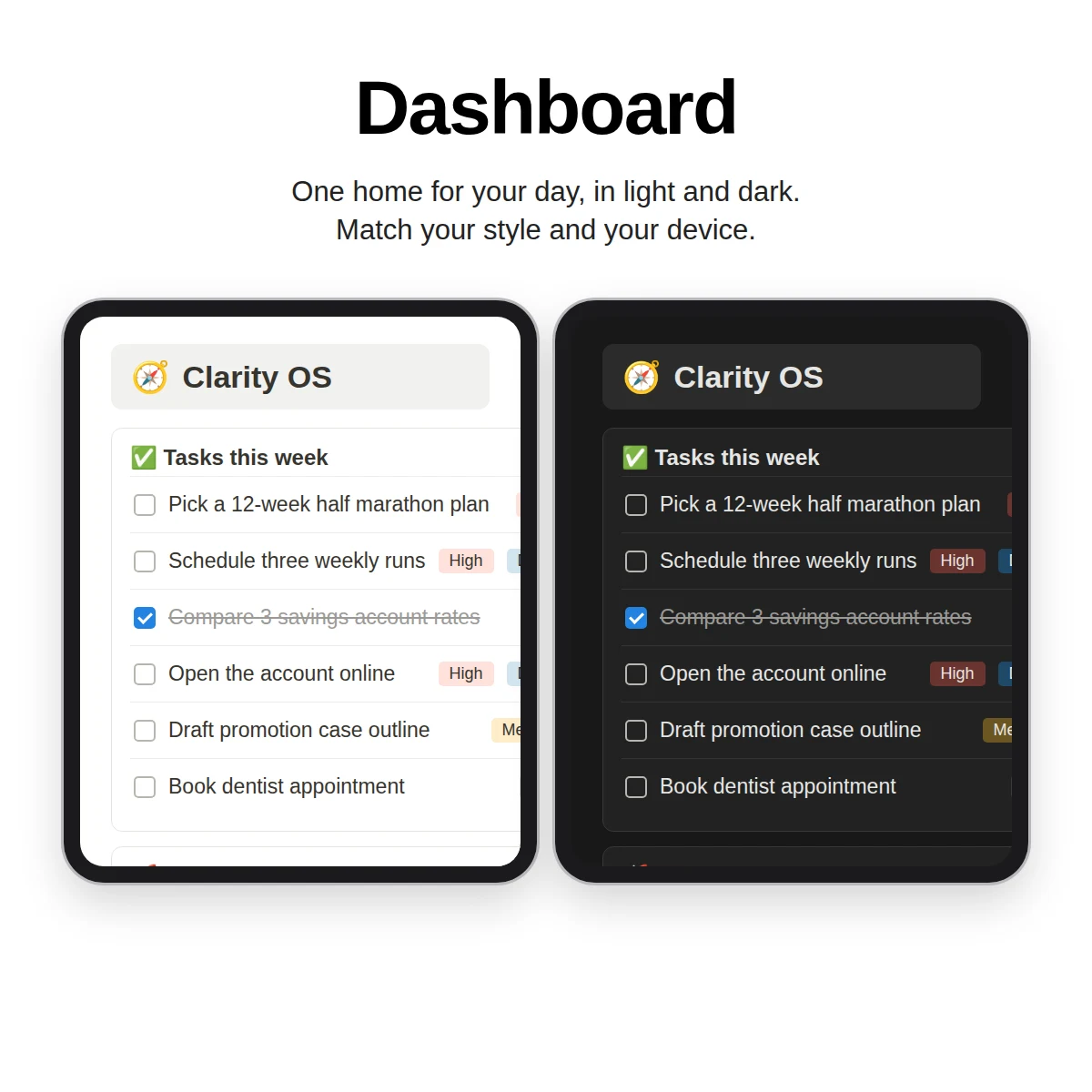
A good Notion dashboard answers one question: what should I look at right now? It is not a gallery of widgets or a showcase of icons. It is a page of filtered views onto databases that hold your tasks, projects and habits. This guide lists six sections worth including, three to skip, and a short build process.
What a dashboard is (and is not)
A dashboard is a linked view page. The information lives in databases such as Tasks or Projects. The dashboard shows filtered windows onto them, so you edit a task in the dashboard and the database updates as well.
Two consequences follow:
- A dashboard needs data behind it. An empty database makes an empty dashboard, which is why sample rows are useful while learning.
- A dashboard is easy to rebuild. Because it holds no data of its own, you can rearrange or replace it freely.
Six sections that earn their place
1. Today
A table or list of tasks that are due today or overdue and not done. This is the one section nearly everyone uses.
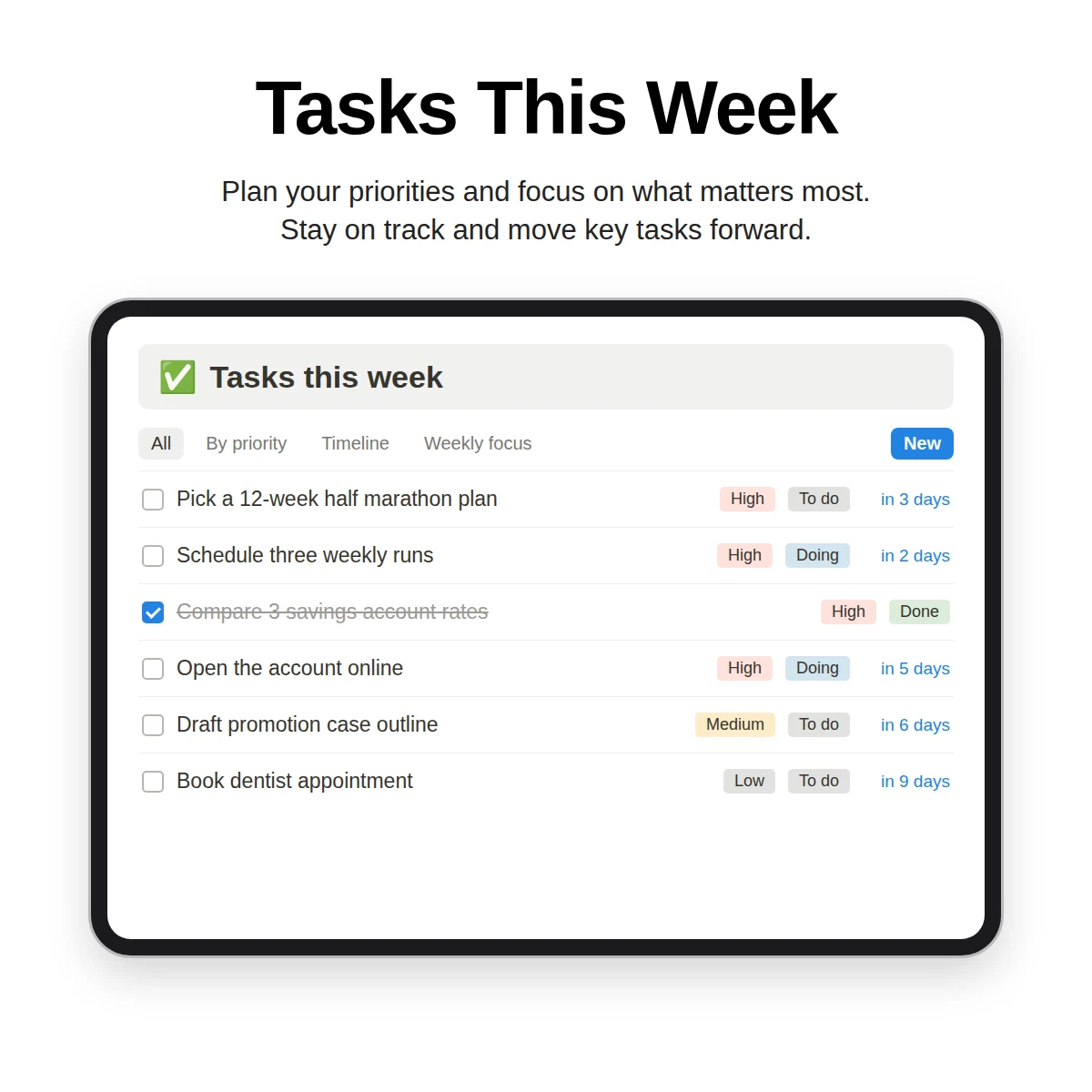
- Filter: due date on or before today, and status is not done.
- Visible properties: title, project, due date. Fewer is better.
2. Weekly focus
A short list of up to three tasks you chose at your weekly review. A checkbox such as "Weekly focus" on the task makes this a single filter.
3. Active projects
A board or list of projects whose status is active, showing progress. This keeps projects visible without opening the database.
4. Habits today
The habits you want to tick today, with a done-today checkbox and a streak. Keep it to a handful. See the habit tracker guide for how.
5. Capture
A quick way to add a task, note or link. Whether it is a button, a link to a capture page or a form, it should take one or two taps.
6. A queue
One of the following, depending on what you actually use: reading and watching, the latest journal entries, or a shortlist of ideas. Pick one rather than all.
Three things to leave off
- Decoration that hides content. Large banners, widgets and quote blocks push your tasks below the fold.
- Every database you own. If you have twelve databases, the dashboard should show three or four. The rest can be reached from the sidebar.
- Metrics you never act on. A chart of pages created per month looks impressive and changes nothing.
Layout tips
- Put Today and Weekly focus at the top, since they are checked first.
- Use two columns on desktop. Stack on mobile; Notion does this for you.
- Limit each view to five to ten rows and link to the full database for more.
- Give every section an obvious heading.
- Favorite the page so it is one tap away on your phone.
Example layouts
Minimalist (for beginners)
| Section | Source |
|---|---|
| Today | Tasks |
| Weekly focus | Tasks |
| Quick capture | Notes |
Personal (for most people)
| Section | Source |
|---|---|
| Today | Tasks |
| Weekly focus | Tasks |
| Active projects | Projects |
| Habits today | Habits |
| Journal latest | Journal |
| Up next to read or watch | Reading & Watch |
Student
| Section | Source |
|---|---|
| Due this week | Assignments |
| Upcoming exams | Exams |
| Study sessions | Study plan |
| Notes inbox | Notes |
For study-specific structures, see the guide to Notion for students.
Build a dashboard in 20 minutes
- Create the databases first. At minimum tasks and projects, linked together.
- Add sample items. Five tasks and two projects are enough to see results.
- Create a new page called Dashboard.
- Add a linked view of Tasks. Filter: not done and due on or before today. Name it Today.
- Repeat for weekly focus, active projects and habits.
- Trim properties so each view shows three or fewer.
- Favorite the page.
- Use it for a week, then remove any section you did not look at.
Maintenance
A dashboard should need almost no upkeep. If you are editing it more than once a month, it is too complicated. Review it when you do your quarterly planning, and remove sections that have not helped. The Notion planner guide shows how daily, weekly and quarterly plans can feed it.
The structure behind it
Dashboards are only as good as the databases beneath them. A tangled structure produces a confusing dashboard, so it is worth reading how to organize a Notion workspace before building. If a dashboard still feels like too much, the page on why Notion feels complicated lists the minimum.
A working example
Clarity OS includes a Dashboard built on the six-section layout above: tasks due today or overdue, weekly focus tasks, active projects, today's habits, the latest journal entries and an "up next" reading and watching list. It sits on 10 connected databases with 93 sample rows marked "Example", so every section shows data from the first minute, and each database has a "Delete examples" view to clear them. A Quick Capture page and a Mobile Guide cover adding items and using views with only three visible properties on your phone.
Build your own from the steps above or start from a working one; either way, keep it to what you use.