Why Is Notion So Hard to Use? The Minimum That Actually Works
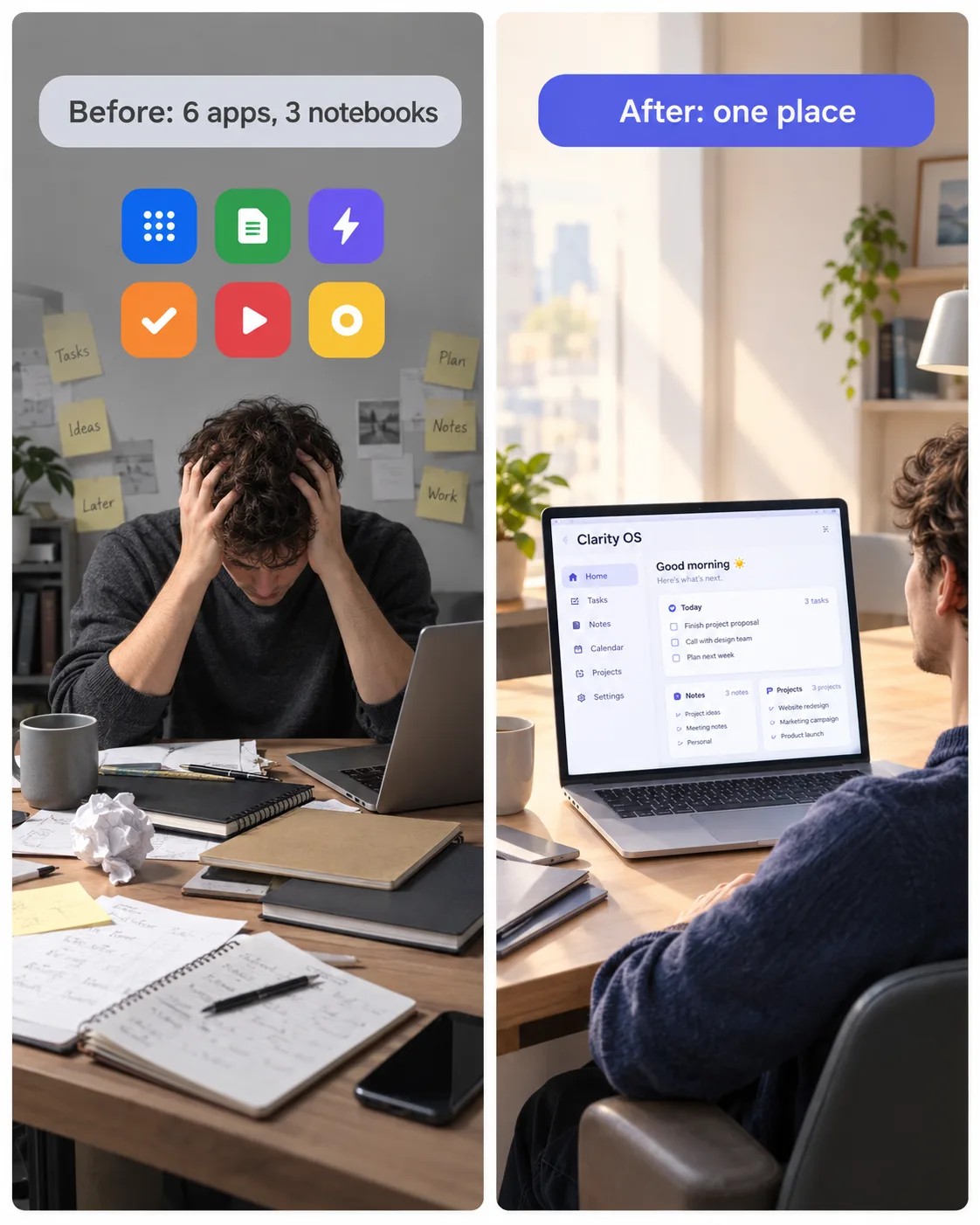
If Notion feels hard, it is usually because the workspace is bigger than your routine, not because you are bad at it. Searches like "why is Notion so hard to use" and questions such as "Is Notion overkill?" point to the same experience: a tool with endless options, a blank page and no clear sense of what to do first. This page explains where the difficulty comes from and how to cut Notion down to the part that earns its place.
The five reasons Notion feels hard
1. A blank page is a design job
Notion does not hand you a structure; it hands you building blocks. That freedom is the point, but it means the first hour is spent making design decisions about properties, relations and views before you have captured a single task.
2. Too many options per property
Every database field can be a select, multi-select, status, date, relation, rollup or formula. More options make it easy to add fields you never fill in. A database with twelve properties asks twelve questions every time you add a row.
3. Systems built for a company, used by one person
Many public setups come from teams: OKRs, sprints, RACI charts. Copying them into a personal workspace produces a lot of upkeep for little benefit.
4. No habit connected to it
A workspace you open only when you remember it falls out of use. Without a repeating moment, such as a weekly review, even a good setup decays.
5. Phone friction
If adding a task from your phone takes six taps, you stop adding tasks from your phone, and the system misses half of what happens in your day.
The minimum that works
You do not need a "second brain" with twenty databases. Aim for three parts and ignore the rest until you have used these for a month.
| Part | What it does | Size |
|---|---|---|
| Capture | One place where new tasks, notes and links land in seconds | One page or button |
| Dashboard | One page that shows what matters today | 4-6 filtered views |
| Review | A weekly pass that empties the inbox and picks priorities | 15-20 minutes |
Capture
Choose a single entry point and use it for everything. Notes that are not yet linked to a project can sit in an inbox view until your weekly pass. The only rule is that nothing needs sorting at the moment of capture.
Dashboard
Your home page should answer "what do I do now?" in one glance. A short list is enough:
- Tasks due today or overdue
- Up to three tasks you chose as this week's focus
- Active projects
- Habits for today
Everything else lives in the databases and can be reached when needed. For more on what belongs on this page and what to leave off, see the Notion dashboard guide.
Review
The weekly review is the maintenance that keeps the first two parts honest. A simple version: clear the inbox, check active projects for anything stuck, write one lesson, choose up to three focus tasks and schedule them. The weekly review guide gives a 15-minute checklist.
How to simplify an overgrown workspace
- Count your databases. If you have more than eight, ask which ones you opened this month.
- Hide, don't delete. Move the quiet ones into an "Archive" page. You can bring them back later.
- Cut properties. For each database, remove fields you have not filled in recently.
- Reduce views. Keep the two or three views you actually use per database.
- Fix the phone. Add the capture page to favorites and use the shortcut your phone offers.
For a longer treatment of structure, read how to organize your Notion workspace.
A realistic first week
If you are restarting from scratch, here is a calm way to spread it out instead of doing everything in one evening:
- Day 1: create one capture place and add three real items to it.
- Day 2: create a Tasks view for today and look at it first thing in the morning.
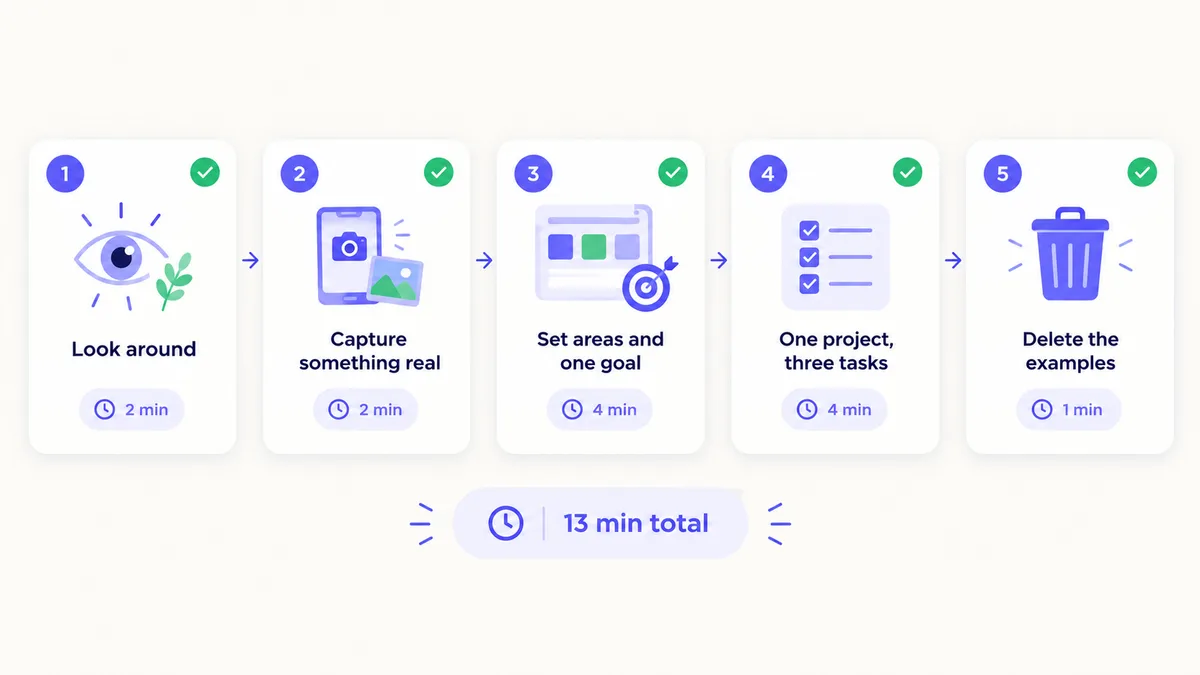
- Day 3: add your areas and one goal. Stop there.
- Day 4 and 5: use what you have. Add nothing new.
- Day 7: run a 15-minute weekly check and decide whether anything is missing.
The point is that using the system for a few days teaches you more than another hour of building. Notion will still be flexible next week.
A simple rule for adding anything new
Before adding a database, a property or a page, ask three questions:
- Will I look at this at least weekly?
- Is there somewhere it already fits?
- Can I do without it for a month?
If the answers are no, yes, and yes, do not add it.
What already-built pieces can remove
A lot of Notion's difficulty is up-front building. Clarity OS ships with the three minimum parts already assembled: a Quick Capture page with an inbox view for unsorted notes, a Dashboard that gathers today's tasks, this week's focus, active projects, today's habits, the latest journal entries and your reading queue, and a Weekly Reset page that runs as a 20-minute, five-step ritual. A Mobile Guide lists the views that show only three properties for easy phone use. A Start Here page walks through setup in five steps and 15 minutes, and a "Delete examples" view removes the sample rows once you have seen how things connect.
You can use the pieces you like and ignore the rest, which is the whole idea. If you want to start from the beginning with Notion basics, try the beginner setup tutorial.
When Notion may not be the right tool
If you only need a quick to-do list with reminders, a simple task app may serve you better. Notion earns its place when you want notes, tasks, projects and plans connected in one place and you are willing to spend a few minutes a week keeping it in order. Being honest about that saves you hours of rebuilding.