How to Use Notion: A Beginner's Setup You Can Finish in 15 Minutes
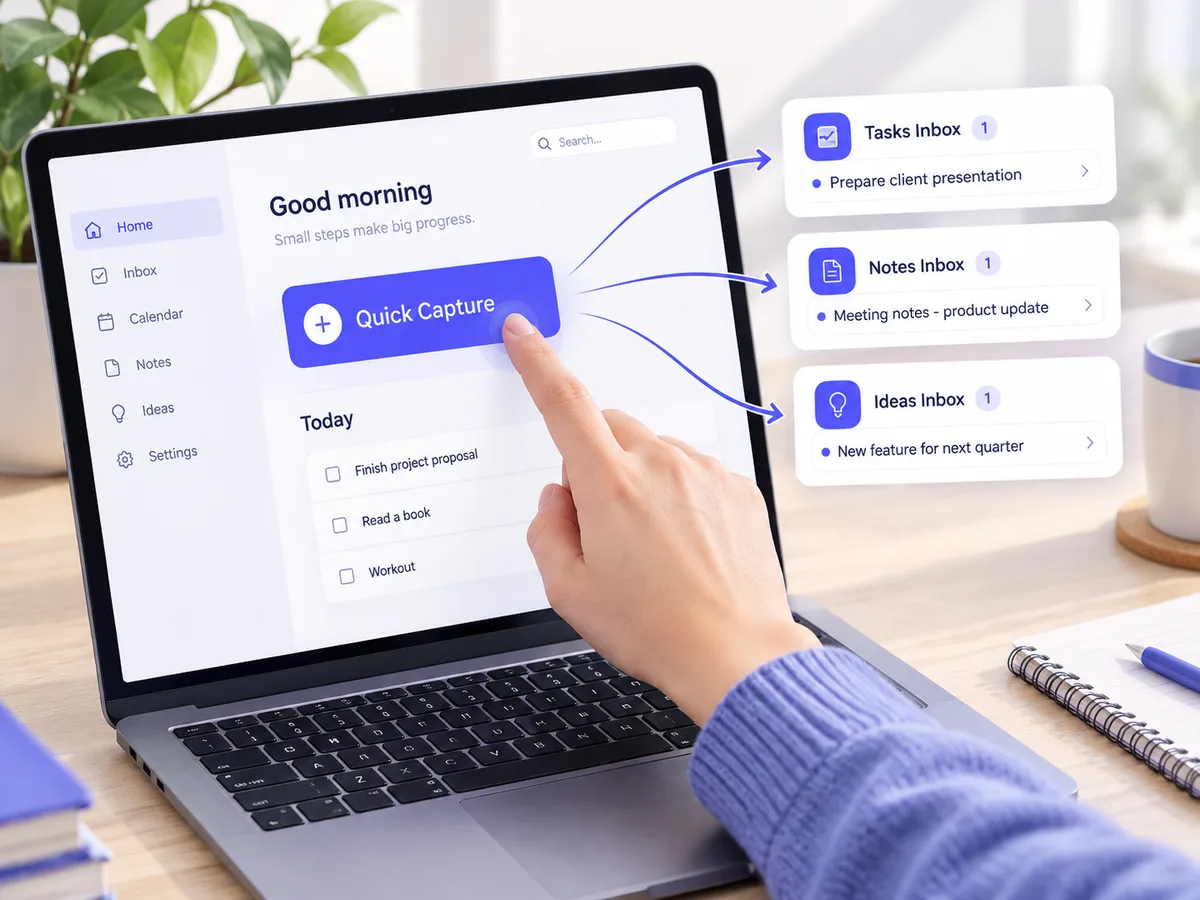
The fastest way to learn Notion is to build a very small system and use it for a week. Most beginners do the opposite: they open a blank page, watch three tutorials, build a dozen pages, and quietly stop opening the workspace. This tutorial keeps to five steps that take about 15 minutes, in the order that makes each one easier.
What Notion actually is
Notion is a workspace made of two building blocks. A page is a document where you write, add checklists and embed things. A database is a set of pages that share fields, called properties, so you can sort, filter and display them in different ways. Almost everything people build in Notion, from task managers to reading lists, is a database with a few well-chosen views on top.
Three terms are worth knowing before you start:
| Term | What it means | Example |
|---|---|---|
| Page | A document you can nest inside other pages | A meeting note |
| Database | A collection of pages with shared properties | A list of tasks with due dates |
| View | A saved way of looking at a database | "Due today" as a table, or a board by status |
| Relation | A link from a row in one database to a row in another | A task linked to its project |
If you only remember one idea, make it this: views and relations are what turn a pile of pages into a system. A task that is linked to a project can show up in a project's progress; the same task can appear in a "today" list without being copied.
Step 1: Look at the whole before you build (2 minutes)
Open a finished workspace, whether it is yours from an earlier attempt or a template, and click around. See which databases exist, how they are connected, and which one acts as the home screen. Seeing a working example first is far quicker than guessing at the structure.
In Clarity OS, the Start Here page opens with this exact instruction: open the Dashboard and look around. Everything on it is sample data marked with an Example checkbox, so you can see how goals, projects, tasks, notes and habits connect before you put your own information in.
Step 2: Capture one real thing (2 minutes)
A system you do not feed is just decoration. Pick one place where new thoughts go, whether that is a task, a note or a link, and add the first real item now. The goal is to build the reflex of capturing in one place, not to sort perfectly.
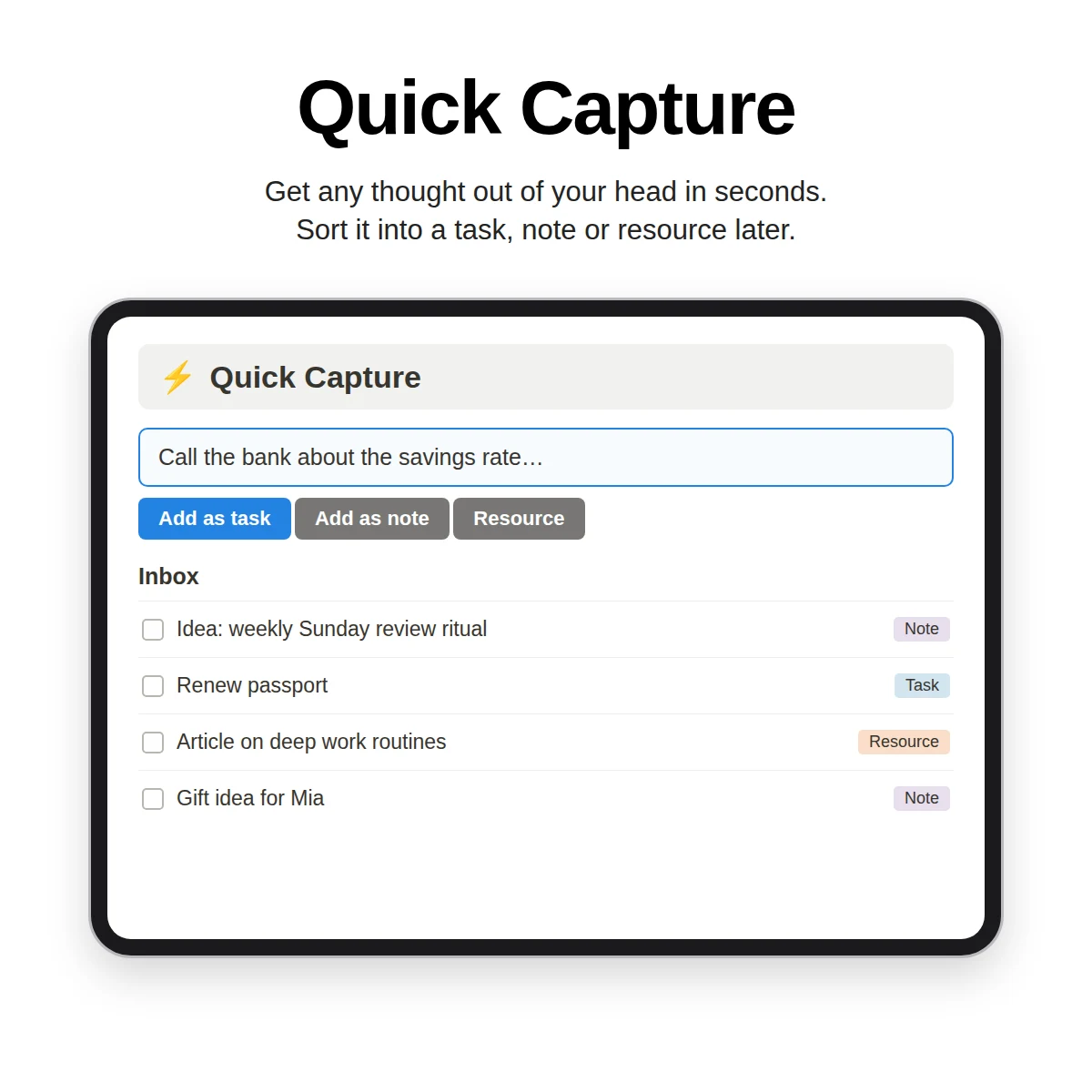
Keep the rule simple: capture first, organize later. A quick-capture page, or an inbox view of notes that are not yet linked to a project, gives you a place to put things in ten seconds. You will sort the inbox once a week in step 5.
Step 3: Define your areas and one goal (4 minutes)
Areas are the ongoing parts of life you maintain, such as health, career, finances, relationships, learning and home. They never finish, which is what separates them from projects. Write down five to eight and rename them to match your life.
Then add one goal for the next three months and link it to an area. One is enough. A common beginner mistake is to list twenty goals and then feel behind on all of them.
Step 4: Create one project with three tasks (4 minutes)
A project is a finite effort with an end date. Add one, link it to your goal, and write three tasks that move it forward, each linked to the project. If your project database includes a progress rollup, you will see the progress bar change as you tick tasks off.
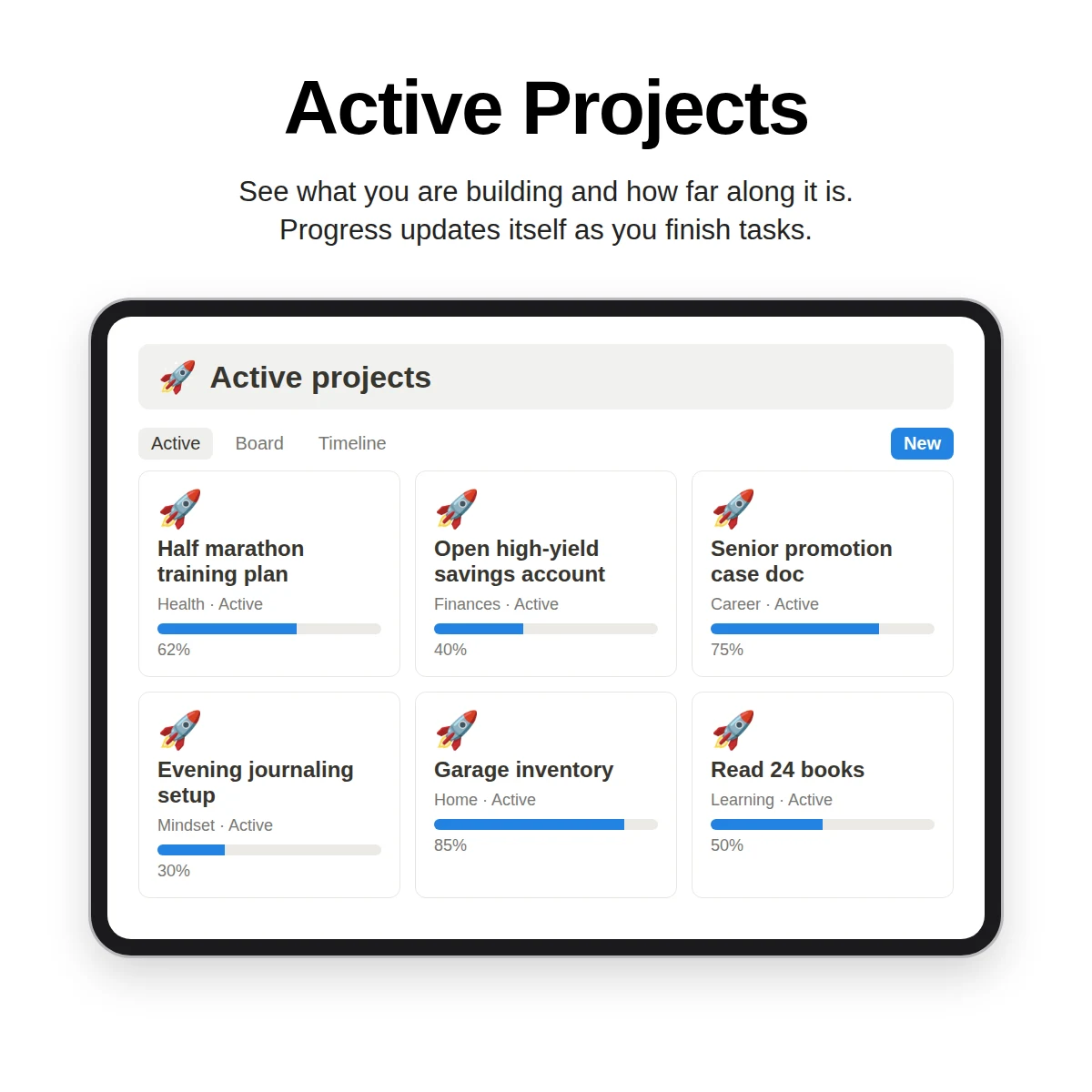
This is the step that makes relations feel real. Instead of three disconnected to-dos you now have a small chain: area, goal, project, task. When you open the area later you can see what you are doing about it.
Step 5: Run a weekly check-in (the habit that keeps it alive)
Notion systems rarely fail because of a missing feature. They fail because nobody looks at them. Pick a day, set a repeating reminder, and spend 15 to 20 minutes doing four things:
- Empty the inbox by linking notes to projects or deleting them.
- Tick off finished tasks and move stuck ones forward.
- Write one line about what went well and one thing to change.
- Choose up to three tasks that matter most next week.
If you want a ready-made routine, see the weekly review guide.
Common beginner mistakes
- Building too many databases at once. Start with tasks, projects and notes. Add the rest when you feel a gap.
- Nesting pages five levels deep. Deep trees hide things. Prefer databases with filtered views over folders of pages.
- Copying other people's setups without understanding them. Take a template for the structure, then delete or rename what you do not need.
- Skipping the cleanup. Sample data is helpful for learning but confusing if it stays. Delete it as soon as you understand how things connect.
Where to go after the first week
Once the five steps feel natural, widen the system a little at a time:
- Tidy where things live with how to organize a Notion workspace.
- Build a home screen following the Notion dashboard guide.
- If the whole thing still feels like too much, the page on why Notion feels so hard to use lists the minimum that works.
A shortcut for the build step
Building the databases yourself is useful the first time and tedious the second. Clarity OS includes ten connected databases (Areas, Goals, Projects, Tasks, Notes, Resources, Habits, Reading & Watch, Journal and Weekly Reset) joined by 19 relations, 93 sample rows marked "Example", a "Delete examples" view in every database, and a Start Here page with the five-step, 15-minute setup used above. A Quick Start Guide walks through the same steps in PDF form, and a library of 120 page templates in eight categories covers specific needs once the core is running.
Whether you build or import, the process is the same: capture in one place, link tasks to projects, review once a week.