How to Organize Your Notion Workspace Without Piles of Loose Pages
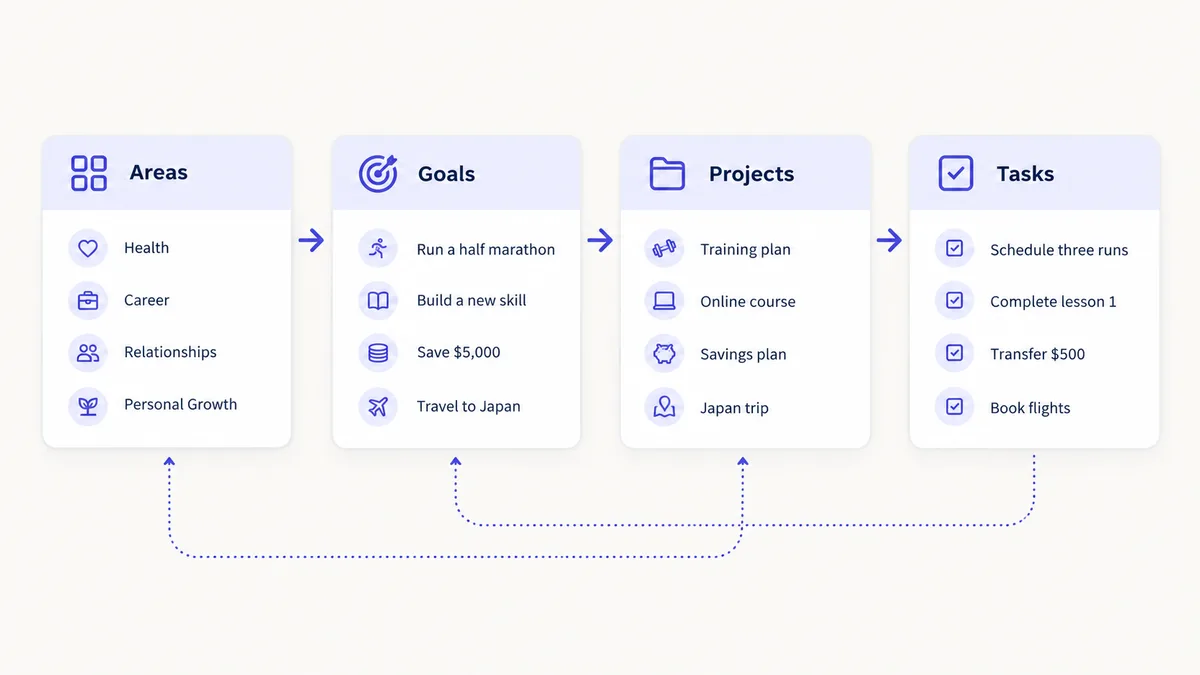
A tidy Notion workspace has few places to put things, and every item in it has a clear home. If your sidebar has grown into dozens of loose pages, the fix is not a prettier layout; it is fewer containers and better connections between them. This guide shows a build order and a set of rules that keep a workspace organized as it grows.
Why workspaces get messy
Notion makes it very easy to create a page and not very easy to remember where you put it. Over a few months three patterns appear:
- Pages at every level. Notes, lists and documents sit directly in the sidebar next to databases.
- Duplicated structures. A "Work" page has its own task list, and so does "Home", and so does every project.
- No link between layers. A goal sits in one page, its project in another, and tasks in a third, so none of them can see the others.
Each pattern is fixed the same way: put things into databases, and connect the databases with relations.
The principle: one place per type of thing
Ask what kind of thing each item is before deciding where it goes.
| Kind of thing | Home | Why |
|---|---|---|
| Ongoing part of life (health, career) | Areas | It never finishes |
| Outcome for the next 3-12 months | Goals | It has a target date |
| Effort with an end | Projects | It has tasks and a due date |
| A single next action | Tasks | It can be done and ticked off |
| Idea, meeting, draft, study note | Notes | Capture first, sort later |
| Link, file, reference to find again | Resources | Kept apart from your own writing |
| Routine you repeat | Habits | Tracked daily or weekly |
If you can name the kind, you know the home. If you cannot, it goes into the notes inbox and gets sorted at your next weekly review.
Build order matters
Build the databases from the top of the hierarchy down:
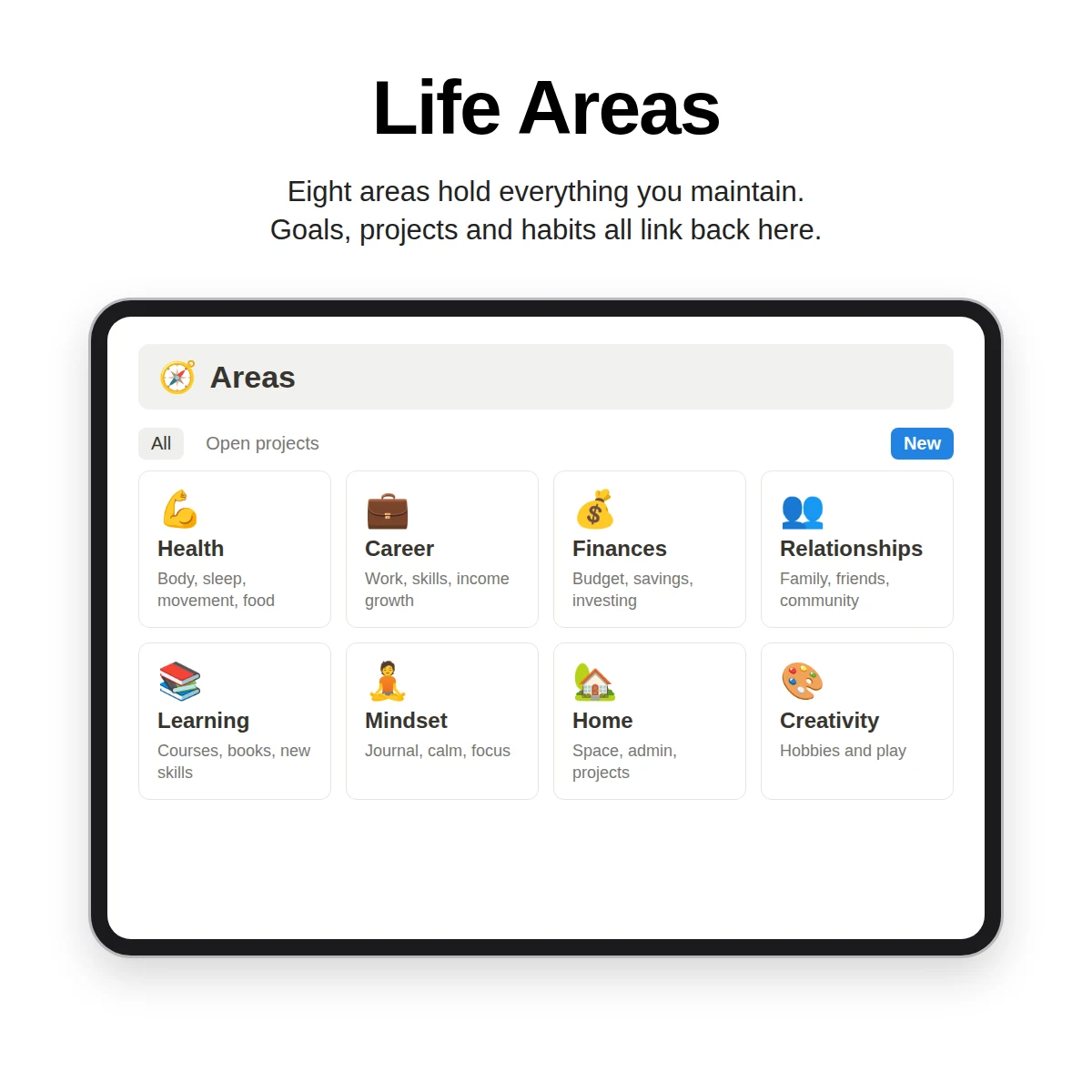
- Areas. Five to eight areas such as health, career, finances, relationships, learning, home, creativity and mindset.
- Goals. Each goal links to an area.
- Projects. Each project links to a goal and an area.
- Tasks. Each task links to a project.
- Notes and resources. Link them to a project or an area when you can; leave them unlinked in an inbox when you cannot.
- Habits, reading and journal. These come last because they attach to areas rather than anchoring the structure.
This is the order Clarity OS follows: Areas, Goals, Projects, Tasks, Notes, Resources, Habits, Reading & Watch, Weekly Reset and Journal. It is a good order to copy even if you build your own, because each database can link to the one before it as soon as it is created.
Use relations and rollups, not copies
A relation links a row in one database to a row in another. A rollup then pulls a value from the linked rows. Together they let a project show how many tasks are open, and an area show how many projects are active, without you typing any of it.
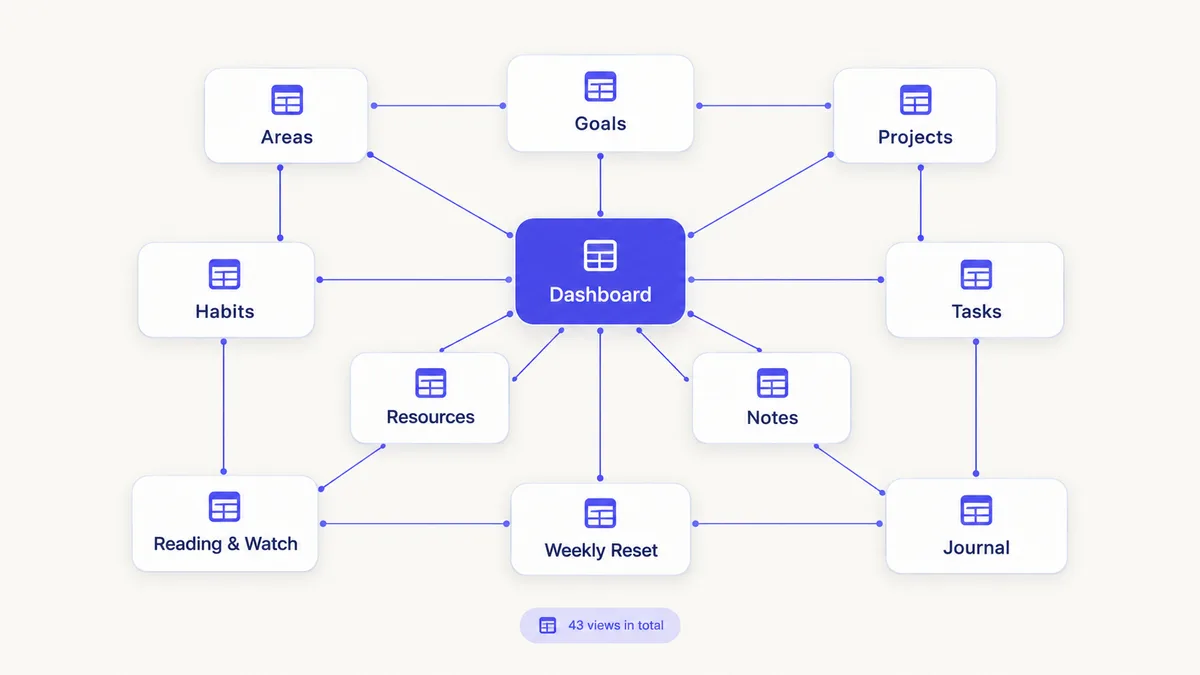
The Clarity OS structure has 10 databases joined by 19 relations. For example:
- A task belongs to a project, and a rollup on the task shows the project's area.
- A project belongs to a goal and an area, and shows its progress from its tasks.
- A journal entry links to a weekly reset, which rolls up your average energy for the week.
The practical benefit is that you never copy information between places. You change a task once and every view reflects it.
Views are your folders
Instead of moving items into subpages, filter them. A single task database can show:
- Today: due today or overdue and not done.
- Board: to do, doing, done.
- Weekly focus: tasks you ticked as this week's top few.
- Calendar: the same tasks on a calendar.
Give every database an inbox view for unsorted items, for example notes that have no project. Emptying that view once a week is the whole job of keeping order.
Keep the sidebar small
- Pin the Dashboard and your databases; keep everything else inside them.
- Avoid nesting beyond two levels.
- Archive old projects rather than deleting them, so they stay searchable.
- Name databases with a plain noun (Projects, Tasks) rather than a decorated title.
A 20-minute cleanup of a messy workspace
- List what exists: scroll through the sidebar and write down every top-level page.
- Mark each as database, document or dead.
- Delete or archive the dead ones.
- Convert recurring lists (tasks, reading, ideas) into one database each, using the table view to paste rows in.
- Add the missing relations: tasks to projects, projects to goals, goals to areas.
- Add an inbox view to notes and tasks.
If you would rather see how a finished structure looks before reworking yours, the beginner setup tutorial walks through it, and the Notion Life OS guide shows how all the pieces fit together.
What a ready-made structure gives you
Clarity OS packages this layout: 10 connected databases and 19 relations, built in the order above, with 93 sample rows marked "Example" so you can see links working, plus a "Delete examples" view in every database to clear them in a minute. It also includes a library of 120 page templates in eight categories (Planning & Reviews, Projects, Money & Home, Health & Habits, Learning & Notes, Personal & Life, Work & Meetings and Creative & Content) for needs beyond the core system.
For where to take it next, see how to organize your life in Notion and the Notion dashboard guide.