Hyperlinked Digital Planner: How Tabs and Links Work
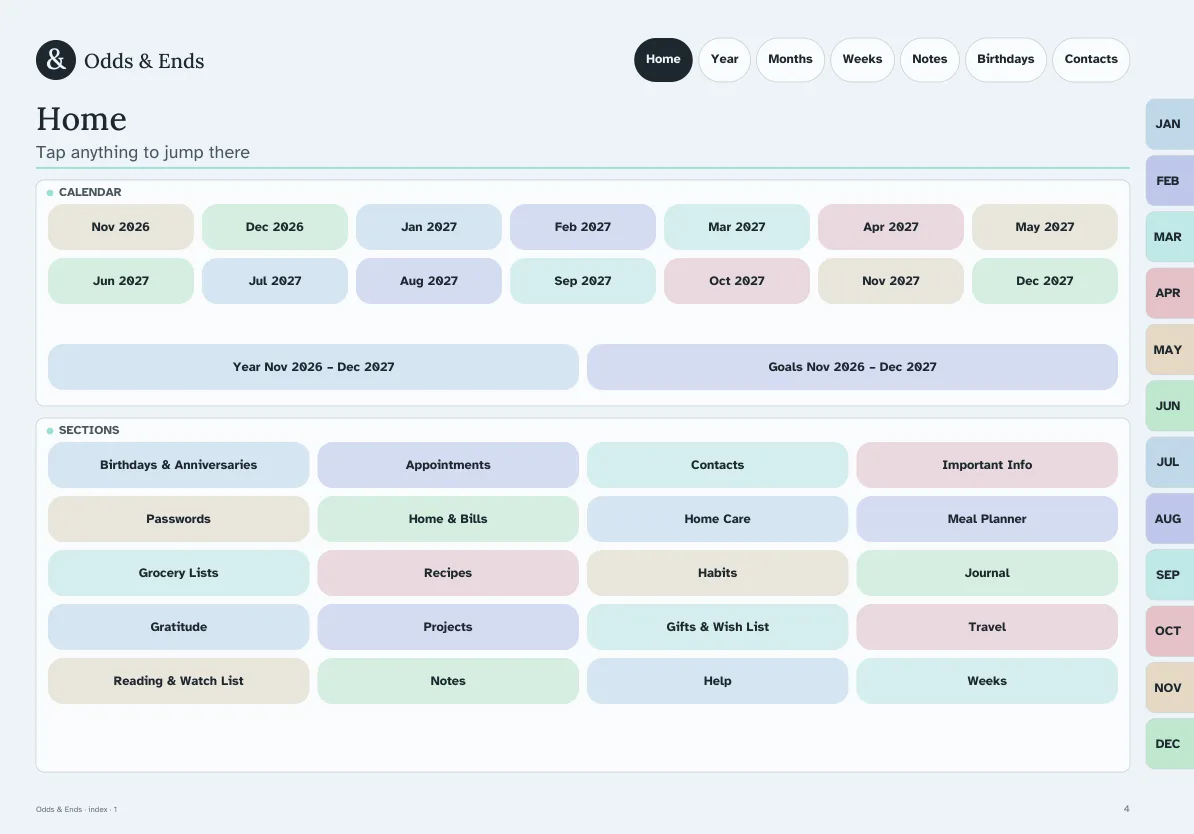
A hyperlinked digital planner is a PDF in which every tab, menu item and date is a tap target. Instead of swiping through 400 pages to find next Thursday, you tap Months, tap the month, tap the week, and you are there. That is the difference between a planner you use and a PDF you scroll through once.
This guide explains how the links are built, how to try them on your own device, what to check when something does not respond, and what to look for when you compare planners.
What the links connect
In a well-made planner every level connects to the next one:
- Home leads to the sections: calendar, weekly, daily, notes, birthdays, contacts and household pages.
- Year shows all twelve months, each linking to its monthly page.
- Month tabs along the edge jump to any month from any page.
- Month pages link each date to its day and each week to its week page.
- Week pages link to their days and to alternative layouts for that week.
In Odds & Ends Digital Planner the top bar (Home, Year, Months, Weeks, Notes, Birthdays, Contacts) and the twelve month tabs appear on every page, so there is no page where you are stranded. Tabs are at least 44 points on each side, so they are practical to hit with a finger or stylus.
Why consistent navigation matters
The most common reason people give up on a digital planner is losing their place. If the menu moves, or disappears on some pages, the planner feels unpredictable and you go back to paper. When the bar and tabs are the same everywhere, the planner becomes a place you can navigate by muscle memory after a few days.
A simple test when evaluating any planner: open a random page deep in the document and see how many taps it takes to get to the current week. In a good hyperlinked planner the answer is one or two.
How the links are built (and why that matters)
These links are internal destinations inside the PDF, called GoTo links. They do not require internet and they do not send your information anywhere. The only external links are on the Help page. Because the links are inside the file, they work when your tablet is offline.
The downside: the link depends on the app. Some PDF viewers display pages but ignore links; some note-taking apps need you to be out of pen mode to tap a link. This is why the setup step matters.
Test the links in five minutes
Before writing anything:
- Import one file into your app and open it.
- Tap Months, then a month, then a week, then a day. Note whether each tap does what you expect.
- Tap Home from the day page. You should return to the start.
- Switch the app from pen to a tap or select mode if links do not respond.
- Close the document and reopen it. Tap the Birthdays tab to confirm links survived.
If links do not work in one app, try another before assuming the file is the problem. The Samsung tablet guide covers app choices on Android.
What breaks links
- Duplicating pages. A duplicated page may copy the appearance but not the link destinations. After you duplicate a page, check what its tabs do, and use a bookmark or note if the app supports it.
- Rearranging or deleting pages. Links point to a specific page position in some apps. If you delete or reorder pages, a tab may land on the wrong page. Avoid reordering the main planner; add pages at the end of a section instead.
- Flattening or exporting. Exporting through some tools removes links. Keep the original document, and export only a copy.
- Pen mode. If your pen is active, a tap may leave a dot instead of following a link. Switch tools.
Dated planners vs undated
In a dated planner every date is already linked: tapping a day on the month page opens that day. In an undated planner you write the dates yourself, but the links between months, weeks and days still follow the structure. See the undated setup guide for how to fill them in.
Tabs for different kinds of use
Links are not only for calendars. The top bar puts the household pages one tap away: Notes, Birthdays and Contacts. A habit I recommend to new users is to put the one page they open the most, often the weekly page or the Birthdays tab, in a place they can reach with a single tap from Home. Because the links are the same on every page, you can build a habit around them.
Choosing between layouts without losing your place
Each week page links to the alternative weekly layouts, Boxes, Columns, Rows, Priorities + rows, Hourly week, Plan & dinner table and Focus week. Instead of replacing a week you do not like, tap into another layout for the same week. The weekly layouts comparison helps you decide, and the daily layouts comparison does the same for days.
What to look for in other planners
If you are comparing hyperlinked planners, ask:
| Question | Why it matters |
|---|---|
| Is the navigation on every page? | Prevents getting stuck |
| Are the tabs finger-sized? | Small targets cause missed taps |
| Do dates link to day pages? | Saves scrolling |
| Which apps does the seller list? | Links depend on the app |
| Is there a plain-language setup guide? | The first import is where people stall |
A note on comfort
Links are a convenience; comfort is the goal. Large tabs, plain language and a layout that does not change from page to page make a hyperlinked planner feel easy. The senior-friendly checklist covers the other points to check, including type size and writing lines.
Once the links work for you, the planner becomes quick: tap to the week, write a line, tap Home, and you are done. Most people find that after a few days the navigation is no longer something they think about.