Digital Daily Planner: Five Day Layouts Compared
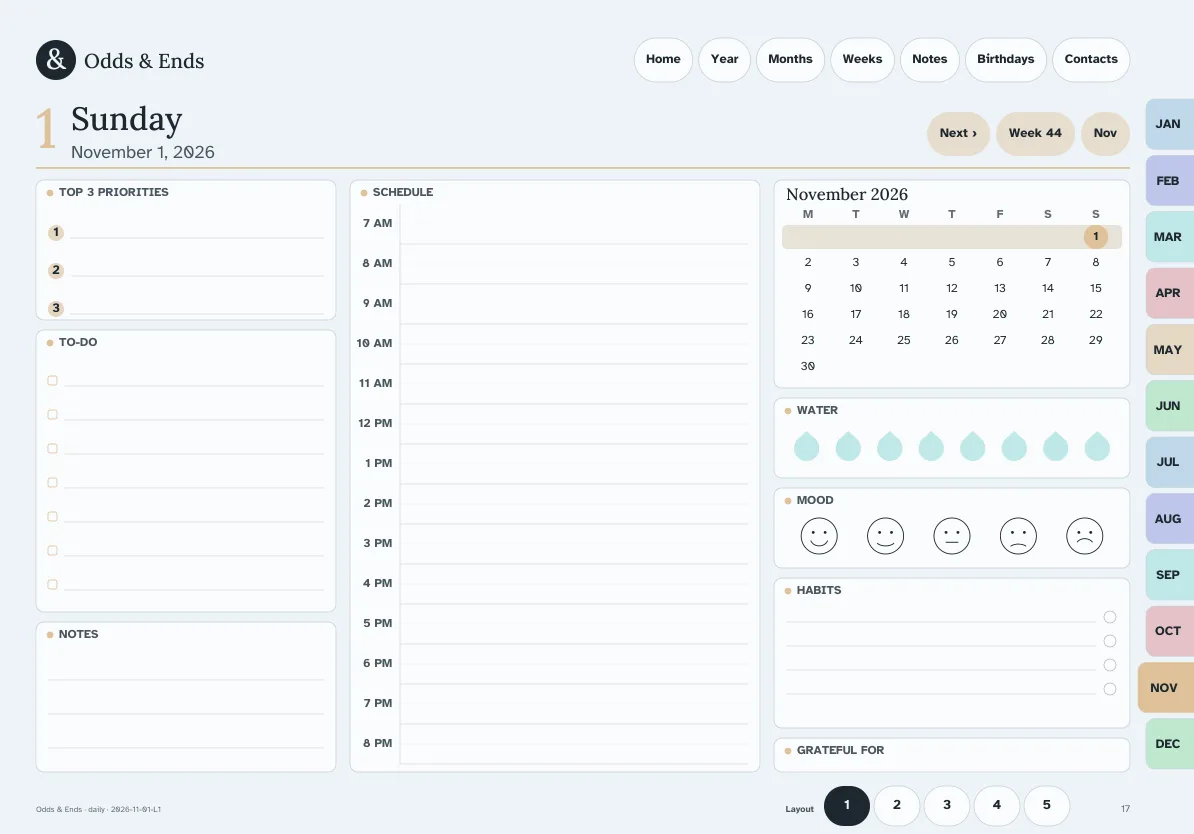
A digital daily planner works when the page matches the shape of your day. A day full of appointments needs hours down the side. A day of errands needs a list. A quiet day might need only a line or two and a place to write how it went. The mistake most people make is picking one layout and forcing every day into it.
This comparison covers the five day layouts in Odds & Ends Digital Planner, who each one suits, and how to use them without turning the planner into a chore.
Start with what a normal day asks of you
Look at the last ordinary day you had and write down what you needed to remember: appointments, tasks, meals, calls, something to bring. Then separate the fixed from the flexible. Fixed items have a time and a place; flexible items just need to get done today or this week.
If you put every task into an hourly slot, one delayed visit makes the whole page feel wrong. If you leave out times entirely, a task list can hide a real appointment. The layout you choose should give fixed items a home with a clock beside them and give flexible items a home without one.
The five layouts at a glance
| Layout | Best for | Think of it as |
|---|---|---|
| Classic day | Mixed days with appointments, tasks and notes | The everyday default |
| Schedule day | Several timed commitments | An hourly column |
| To-do day | Errands and flexible tasks | A checklist with room to prioritize |
| Journal day | Writing about the day | Ruled space for longer notes |
| Meals day | Planning what to cook and shop for | A place for your own meal notes |
Classic day: the default
Every dated day in the planner has a Classic day page, so you can always tap a date and land somewhere useful. It combines a timed area, a task list and a notes space. For most people, most days, this is enough. If you find yourself running out of room in one section on most days, that is your signal to try one of the specialized layouts.
Schedule day: when time is the constraint
Choose Schedule day for a day with a doctor's visit at 9:30, lunch at noon, and a call at 3:00. The hourly column keeps those anchors visible so you can see the gaps. It is also helpful for days with a lot of back-and-forth, such as helping with a family event. The trade-off is that the page gives less room for loose tasks, so keep a separate list for those on the weekly page.
To-do day: when the day is a list
Errand days are a list, not a schedule. The To-do day layout gives you more checklist rows and space to mark which items matter most. Use it for the Saturday with a pharmacy run, a library return, and three phone calls. When an item does not happen, write the new day beside it on purpose. If the same item keeps moving, ask whether it needs a different day or should come off the list.
Journal day: when you want to remember the day
A Journal day is for people who like to write a few lines about what happened: who called, what grew in the garden, what the grandchildren said. The ruled space is generous and the writing lines meet the same minimum height as the rest of the planner (34 points, or 44 points in Large Print). It pairs well with a few stickers from the optional sticker bundle if you like decorating.
Meals day: when dinner takes planning
Meals day gives you space for breakfast, lunch and dinner notes and a place to jot down what to buy. It is a writing page, not an automated meal service or nutrition advice, so what goes on it is up to you. If you plan a week of dinners, the weekly layout named Plan & dinner table is often quicker; use Meals day when a particular day needs more detail, such as a holiday meal.
A worked example
Imagine Thursday: a repair visit at 9:30, a library book to return, dinner for two guests, and a call to your sister. On a Classic day page you would write the repair visit in the timed area, put the library return and the call on the task list, and note the menu in the notes space. If the dinner prep expands, duplicate a Meals day template for that date and write the date on it.
At the end of the day, take thirty seconds to mark what happened. A check mark is enough. Anything unfinished gets a deliberate new date or gets crossed off.
How the daily pages connect to the rest
Every page carries the top bar (Home, Year, Months, Weeks, Notes, Birthdays, Contacts) and twelve month tabs, so going from a day back to the month is one tap. The weekly page links to each day and to its alternative weekly layouts. The monthly page is where an event lives; the daily page is where its details live. When something changes, update both, because a PDF does not reconcile two entries for you.
Using the other day layouts
The first day of each month carries the Schedule, To-do, Journal and Meals templates. To use one on another date, duplicate that page in your note-taking app and write the date at the top. Duplicating a page copies how it looks but may not carry over the link destinations, so do not expect the monthly date to jump to your duplicate unless your app supports that. Practice once: duplicate a page, label it, close the document and find it again before you do it for a month.
If you plan to write dates yourself, the undated files give you the same layouts without printed dates; this walkthrough explains the undated setup. For the broader weekly view, read the weekly planner guide, and for the first session with the files, the hyperlinked planner guide.
Which one should you pick?
If you are unsure, use the Classic day for two weeks. Notice what you write most. If you keep adding times, favor Schedule day for those days; if you keep adding errands, use To-do day. You do not have to commit to one layout for the year. The point of having five is that your days are not all alike.
For comfort when reading, compare the standard and Large Print pages in the planner guide for seniors.