Undated Digital Planner: Set Up Dates Without Confusion
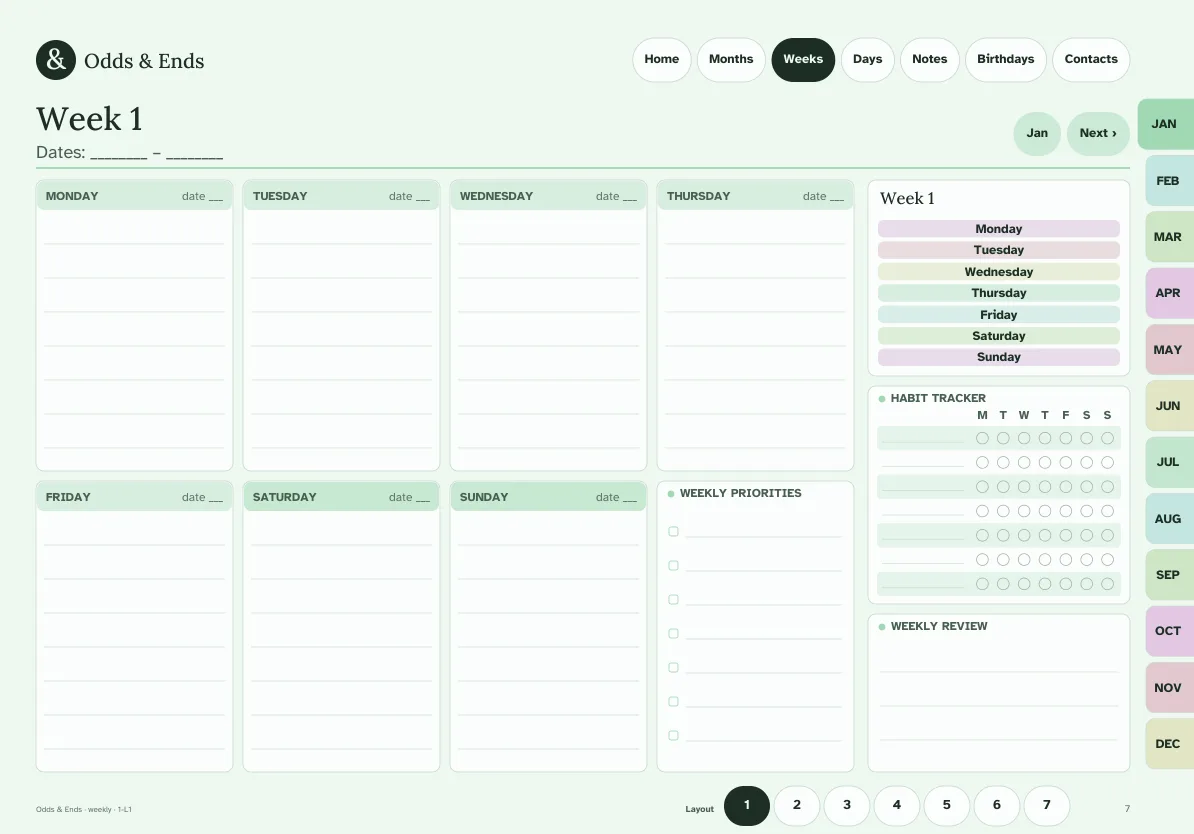
An undated digital planner gives you the layouts without the calendar, so you start when you are ready. There is no January page staring at you in May and no month of blank pages you feel behind on. You write in the dates, and the planner follows your life rather than the printed year.
That freedom comes with a small setup task. This guide covers when undated is the right call, how to set it up in about fifteen minutes, and how to keep it tidy over time.
Dated or undated? A quick decision
Choose undated if any of these apply to you:
- You start planning in the middle of a month or year.
- You travel for weeks at a time and skip planning.
- You prefer to choose which weeks to keep.
- You want to reuse the same planner pages next year.
Choose dated if you want every date already linked and you want to open the planner and begin. Odds & Ends Digital Planner includes both: the dated planner runs from November 2026 through December 2027, and the undated group sits alongside it. You do not have to choose permanently.
What the undated files contain
There are eight undated PDFs: portrait or landscape, Monday or Sunday start, in Sage or Classic Navy. They have the same sections, the same top bar (Home, Year, Months, Weeks, Notes, Birthdays, Contacts), and the same twelve month tabs as the dated files. The weekly layouts, daily designs and 20 sections carry over. The difference is that the date fields are blank for you to fill in.
The dated planner has ten color themes and the undated has two, so if a specific color matters to you, check which group offers it.
Set it up in six steps
- Pick the orientation first. Portrait suits a tablet held upright like a notebook; landscape suits a tablet on a stand or a desk. If you write with the tablet flat in your lap, try portrait.
- Choose your week start. Monday or Sunday. This affects where each week begins on the weekly and monthly pages, so choose the one that matches how you think about the week.
- Import a copy and keep the original. Save the downloaded PDF in a folder named something like Planner Originals and never write on it. Import a duplicate into your note-taking app as your working planner.
- Fill in the first month. On the monthly page, write the month name and then the day numbers in each cell. Use a pen color you will recognize as a date. This takes ten minutes the first time.
- Write weekly dates as you reach them. Do not fill in a year of dates up front. Add the week's dates on Sunday evening or Monday morning as part of your routine.
- Test navigation. Tap through the tabs and the top bar to confirm everything links as expected, then close and reopen the document.
A routine that makes dating painless
The most common failure with undated planners is planning to fill dates in later and then not doing it. Make dating part of the routine you already have: when you open the week page, write the dates first. It becomes a small ritual, like turning a paper calendar page.
If you find it tedious, fill in dates one month at a time on the first of the month. Four weeks of dating takes less than five minutes with a stylus and the habit is easier to keep than a once-a-year sprint.
Keep a clean master
Because undated files are meant for reuse, protect the blank master. When you want a second year or a fresh start, duplicate the master again instead of erasing a used planner. Erasing handwriting by layer is fiddly, and a fresh duplicate is always cleaner. Name copies by year, for example Planner 2027 Working.
Undated pages and links
The planner uses internal links, so tapping a month tab takes you to that month. In an undated file those links go to the months in order, but the month names are yours to write. If you duplicate pages, check how your app treats the links, because duplicates may not carry over the link destinations. Use a bookmark or a note on the duplicate if your app has that feature.
Mixing in the weekly and daily layouts
The planner has seven weekly layouts: Boxes, Columns, Rows, Priorities + rows, Hourly week, Plan & dinner table and Focus week. Undated users get the same set. Try two layouts over two weeks and keep the one you reach for. The weekly planner guide compares them, and the daily layouts comparison does the same for single days.
What undated does not do
Undated does not guarantee future-year dated editions, and it does not adjust itself to leap years or holidays; you write what you need. If you want printed dates for a later year ready-made, that is a separate edition rather than something implied by the undated file. For what each file in the bundle includes, see what is inside the planner.
Is it worth having both?
Many people start with the dated planner because it is the least work, then use an undated copy for a second purpose: a travel log, a project planner, or a year they want to begin in a different month. Since the bundle is a one-time purchase of $36.99, having both costs nothing extra, and the notes on payment explain why that matters over several years.