Digital Weekly Planner: Seven Layouts Compared
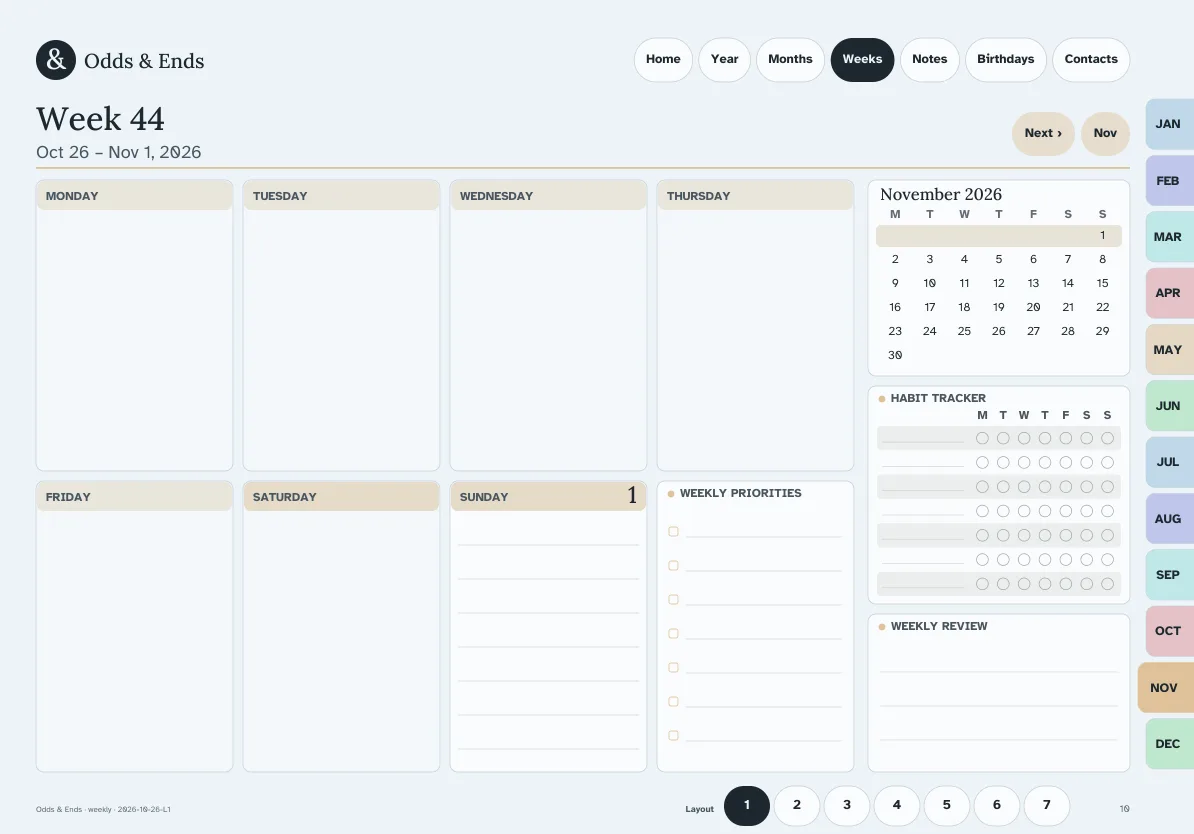
A digital weekly planner is the page you will use more than any other, so choosing its layout is worth ten minutes. Monthly pages show what is coming; daily pages hold the details; the week is where you decide what actually happens. The right layout makes that decision quick. The wrong one leaves you crossing out and squeezing words into corners.
Odds & Ends Digital Planner includes seven weekly layouts and links each week to its alternatives. This guide compares them so you can start with a good guess and switch if it does not fit.
Start with your week, not with the layout
Think about last week. How many fixed appointments did you have? How many errands and tasks? Did you need meals planned? Did you have one big thing that mattered most? Your answers point to the layout.
The seven layouts
Boxes. One box per day, like a wall calendar turned into a week. Good for people who write a few lines per day: appointments, a call to make, a note. It is the safest starting point if you are unsure.
Columns. Days side by side as tall columns. This gives you room for a longer list on each day and works well in landscape. It suits weeks with many small tasks spread across days.
Rows. Days stacked as wide rows with writing lines. Landscape gives you long lines; portrait gives you shorter. A good choice for people who prefer a lined page and write in sentences, not fragments.
Priorities + rows. The same rows with a priorities area at the top of the page. If you tend to bury the one thing that matters under ten small ones, this layout makes you name your main goals for the week first.
Hourly week. Time slots for each day. Pick it when your week has several timed commitments, such as medical visits, classes or shifts. It gives less room for loose tasks, so pair it with a short list somewhere else.
Plan & dinner table. A weekly plan with a place for dinners. Many households plan the week around who is eating when. Use it when meals are part of the plan; the table gives you a quick look at the week's dinners next to what else is happening.
Focus week. A calmer layout with room for a few priorities and notes. It suits a week when you want to protect time, for example before a trip or during a family visit, and not fill every hour.
Quick chooser
| If your week is... | Try |
|---|---|
| Mostly a few appointments with notes | Boxes |
| Many small tasks across days | Columns |
| Written in full sentences | Rows |
| Crowded with must-dos | Priorities + rows |
| Run by the clock | Hourly week |
| Built around dinners | Plan & dinner table |
| Better with less on it | Focus week |
Portrait or landscape
Portrait feels like a paper notebook. Rows are shorter but you get more vertical room. Landscape gives you a wide view, better for Columns and Hourly week. If you switch between holding the tablet and using it on a stand, import both and see which one you reach for.
Large Print is available in both orientations with 44 point writing lines and 18 point text, covered in the large print guide.
Monday or Sunday start
The planner includes Monday-start and Sunday-start files. The choice changes where each week starts on the monthly and weekly pages. Pick the one that matches your calendar; many people who work Monday to Friday prefer Monday, and those who think of the week as running from church or family Sunday prefer Sunday.
Try it for two weeks
Choose one layout and use it for two full weeks. Notice what you add in the margins, what you leave blank and where you run out of room. Those signs tell you what to change. Because each week page links to its alternatives, you can swap layouts for one week without touching the rest of the year. Do this before you try any customizing.
A worked example
Suppose your week has a hairdresser on Tuesday at 11:00, a dentist on Thursday at 2:30, a grandchild's recital on Saturday, and the usual groceries and calls. Start with Boxes. Write the appointments in the right boxes, then write errands in the Wednesday and Friday boxes where you have free time. If Thursday starts to feel crowded, tap into Priorities + rows for next week and list the three things that must happen before the weekend.
Link weeks to days and months
A week is a hub: the month page tells you what is coming, and the day pages hold details. In the planner, tapping a day on the week page opens it, and the top bar and month tabs take you back. If you update an appointment time in one place, update the others, because a PDF does not connect the entries on its own. The hyperlinked planner guide explains how the links work and how to check them, and the daily layouts comparison covers single days.
If you prefer to set your own dates
The same seven layouts are in the undated files, where you write the dates yourself. The undated setup walkthrough shows how to do it without confusion.
Review once a week
The best habit for a weekly planner is a five-minute review: look back, cross off what was done, move what was not, then look at the next week. The planner gives you one place to do it, so the routine can stay short.