Large Print Planner for Tablets: What to Compare
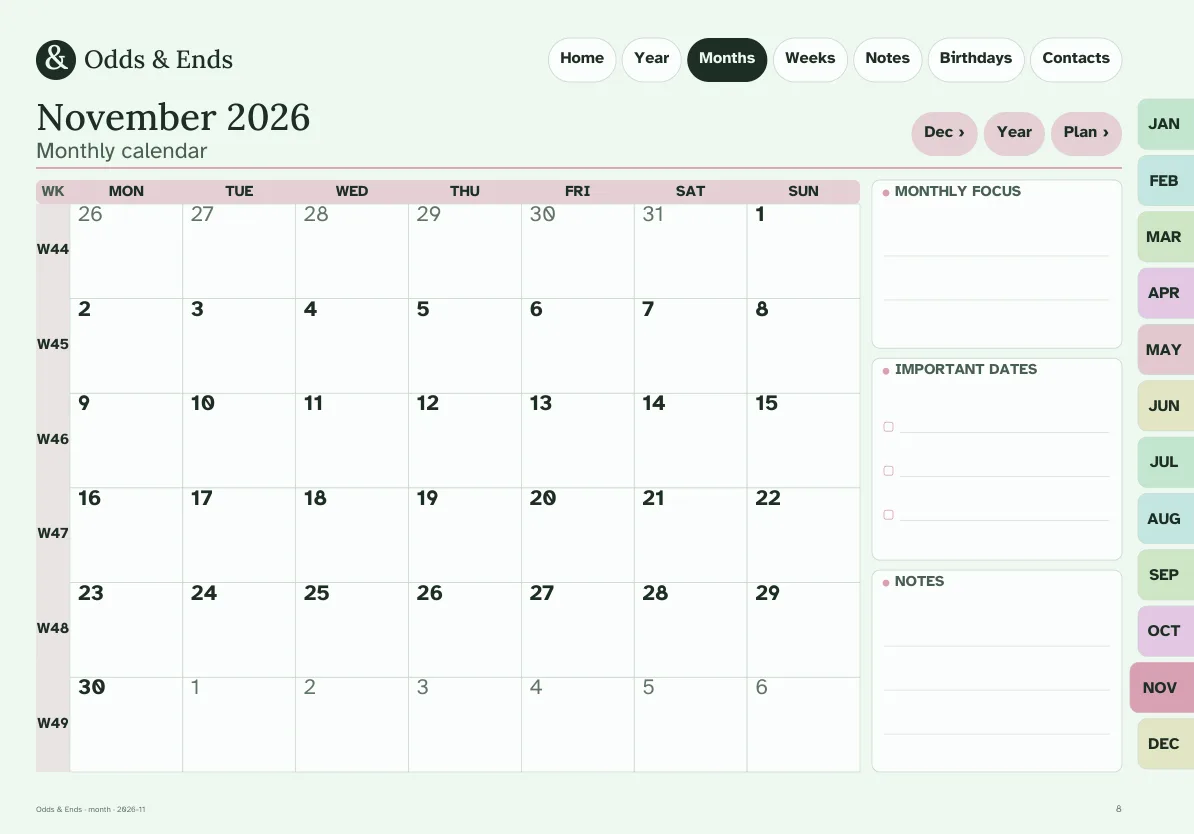
A large print planner is not a regular planner with the zoom turned up. Zooming a PDF makes everything bigger but leaves the problems in place: writing lines too close together for handwriting, tabs too small to tap, and a page you have to slide around to read. A real large print edition is redrawn for the bigger size.
If you are shopping for one, here is what to compare, and what the Large Print edition of Odds & Ends Digital Planner does about each point.
1. Body text size
Large print traditionally starts at 14 points. For a screen you view at arm's length, 18 points is more comfortable. The standard pages of this planner use body text of 14 points or more; the Large Print edition uses 18 points or more. Hold a screenshot at the distance you normally use your tablet and read a sentence. If you lean in, the text is too small for you, whatever the label says.
2. Line height for handwriting
Your handwriting is probably larger on glass than on paper, because the stylus tip is thicker and there is no friction. Writing lines of 34 points suit most people. Large Print goes up to 44 points, enough for a bold hand or a finger-tip scrawl. When you compare planners, look at the space between lines on the weekly and daily pages, not just the monthly grid.
3. Tab and button size
Everything in a digital planner is a tap target. In this planner the navigation tabs are at least 44 points on a side, the size that touch interface guidelines recommend. The top bar (Home, Year, Months, Weeks, Notes, Birthdays, Contacts) and twelve month tabs repeat on every page, so the same large targets are always in the same place.
4. Contrast
Large letters in pale gray are still hard to read. The two Large Print themes, Sage and Charcoal & Cream, put dark ink on a light page. The typeface, Atkinson Hyperlegible, was designed by the Braille Institute so that similar characters such as I, l and 1 are easy to tell apart. That matters most on dates and times, where a misread digit costs you an appointment.
5. Fewer things per page
Enlarging text means less fits on a page, so a well-made large print planner removes clutter instead of shrinking it back. Check that the monthly page has day boxes big enough to write a short appointment, and that the weekly page is not trying to hold a time grid and a task list in the same small box. If you need to see more, a different layout is better than smaller type. The weekly layouts (Boxes, Columns, Rows, Priorities + rows, Hourly week, Plan & dinner table and Focus week) let you trade detail for room; see the weekly planner guide.
6. Orientation
Portrait looks like a paper notebook and gives longer writing lines. Landscape suits a tablet on a stand or keyboard cover and gives wider monthly grids. Both exist in the Large Print group, and you can import one of each to compare for a week.
| Choice | Portrait | Landscape |
|---|---|---|
| Feels like | A notebook | A desk calendar |
| Good for | Long daily notes, lists | Month at a glance |
| Tablet position | Held upright or flat | On a stand or case |
7. A guide you can read
The setup instructions should be as large as the planner. The Quick-Start Guide is written in large print and covers GoodNotes, Notability, Samsung Notes, Xodo and Noteshelf, with the steps to import a PDF and use the links. If you do not own one of those apps, begin with the one that comes installed on your device.
What the eight Large Print files are
The Large Print group has eight PDFs: portrait or landscape, Monday or Sunday start, in Sage or Charcoal & Cream. They cover the same period as the standard dated planner, November 2026 through December 2027, and share the same 20 sections, including Birthdays & Anniversaries, Appointments, Contacts, Home & Bills and Meal Planner. You import one file, not all eight.
A Large Print label does not certify accessibility with every screen magnifier or reader, and it has not been tested on every app. Try it on your own device with a real task, like entering next week's appointments, before you rely on it.
Standard or Large Print? A simple test
Open both versions at your normal viewing distance and write your name and a phone number on the notes page. If your writing fits comfortably on the standard line, the standard edition gives you more room per page and ten colors to choose from. If you write over the lines, or you can read the standard text but not without effort, go with Large Print. Many people find the Large Print weekly page is the one they enjoy using most because nothing feels crowded.
Not just for older eyes
Large print is not only for people with low vision. Anyone who writes with a fingertip, uses a tablet on a stand across a kitchen, or simply likes uncrowded pages will find it restful. If that sounds like you, the senior planner checklist covers the other things worth checking, and the list of included files shows how the Large Print group fits with the dated and undated editions.
Adding comfort at the device level
The planner handles layout; your tablet handles the rest. Turn up screen brightness, set the stylus to a thicker tip in your note-taking app, and raise the pen color contrast. If you use Android, the Samsung tablet guide covers app choices. Small changes at the device level combine well with a layout that was designed for bigger writing from the start.