Digital Planner for Samsung Tablet and Android
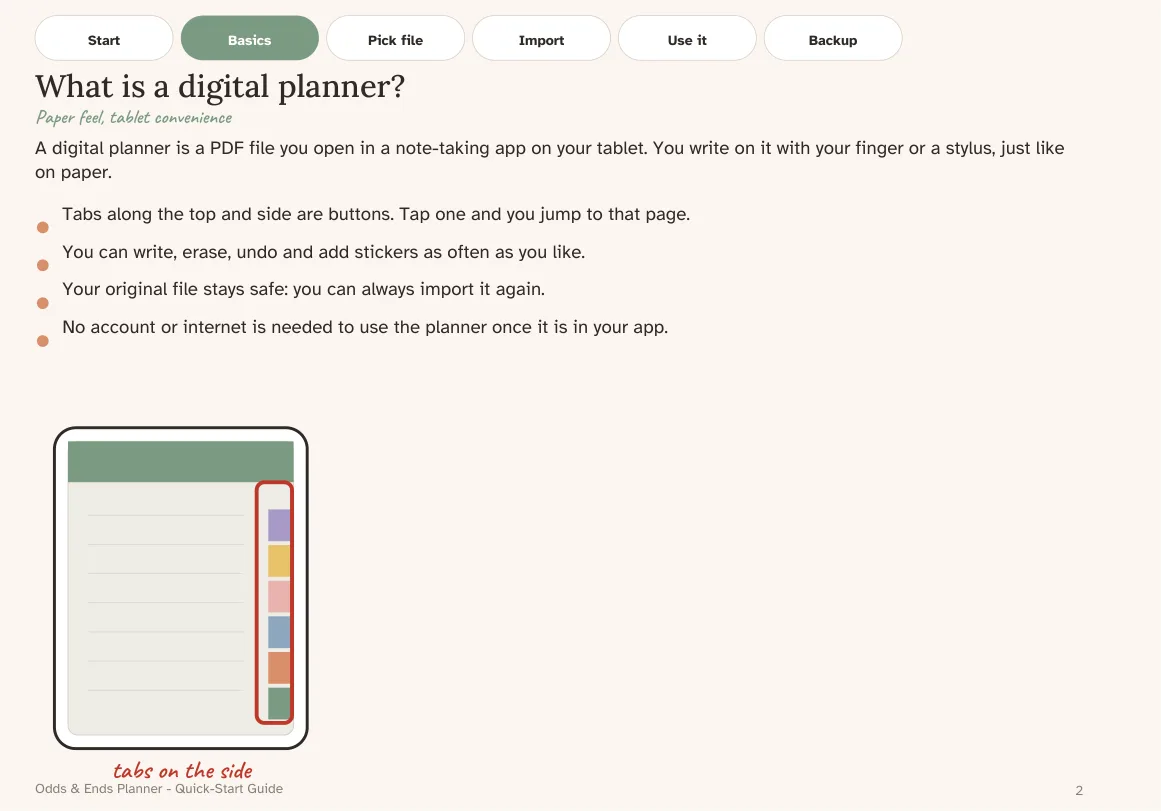
A good digital planner for a Samsung tablet is a PDF with working links, big tabs and a note-taking app that handles both. Many planners are marketed for iPad and mention Android as an afterthought. A PDF does not care what brand you own, but the app you open it in matters a lot, and so does whether the seller tells you how to set it up.
This guide covers choosing an app, importing the file, checking the links and writing comfortably on a Galaxy Tab or another Android tablet.
Why a PDF planner works on Android
A PDF planner is a document with internal links. Any app that shows PDFs, lets you write on them and follows internal links can run it. On Samsung tablets that includes Samsung Notes, and on any Android tablet you can install apps such as Xodo or Noteshelf. Odds & Ends Digital Planner is a set of PDFs, and its Quick-Start Guide in large print includes steps for GoodNotes, Notability, Samsung Notes, Xodo and Noteshelf, so you can follow the one that matches your device.
The planner has not been verified on Kindle Scribe or reMarkable, so if you own one of those, treat compatibility as untested.
Choosing an app
| App | Good for | Check |
|---|---|---|
| Samsung Notes | Already on Galaxy tablets; works with S Pen | Import the PDF and confirm links |
| Xodo | PDF-focused annotation | Check whether links respond in your mode |
| Noteshelf | Notebook-style writing | Confirm import and link behavior |
Try one app at a time. If links do not respond in one, try another before concluding the file is at fault.
Import in five steps
- Download the files from the delivery page to your tablet, and keep the originals in a folder you will not write on.
- Choose one file. Pick portrait or landscape, Monday or Sunday start and a color. If reading comfort matters most, begin with a Large Print file; this comparison helps you choose.
- Open it in your app. In Samsung Notes use the import option for PDF; in other apps use Open or Import.
- Test the tabs. Tap Months, a month, a week and a day, then Home. If nothing happens, switch from pen to a view or select mode and try again.
- Close and reopen. Confirm your writing and the links are still there. Then start using it.
If a step is unclear, the Quick-Start Guide shows screenshots and uses large type.
Writing comfortably
Android tablets vary in screen size and stylus support. A few settings help whatever you own:
- Pen thickness. A slightly thicker pen makes handwriting easier to read on the planner's writing lines.
- Palm rejection. Turn it on so your hand resting on the screen does not leave marks.
- Brightness. Raise it a little when writing in a sunny room.
- Zoom. Use two-finger zoom for small areas, but avoid relying on it for everything; a Large Print file may be a better fit.
The standard pages have writing lines at least 34 points tall; Large Print goes to 44 points. Navigation tabs are at least 44 points, comfortable for fingers.
Orientation on a Samsung tablet
Landscape suits a tablet in a book cover on a table, and gives wide monthly and weekly pages. Portrait suits holding it like a notebook. Both are included; you can import one of each and compare for a week.
What to avoid
- Do not write on the original download. Import a copy.
- Do not reorder pages in the planner. Links may point to the wrong place.
- Do not assume duplicated pages keep their links. Check them in your app.
- Do not install every app at once. Choose one and learn it.
What the planner gives you
Odds & Ends Digital Planner includes 56 PDFs: 40 standard dated files in ten colors, 8 Large Print dated files and 8 undated files. The dated range is November 2026 through December 2027. There are 20 sections and 41 templates, among them Birthdays & Anniversaries, Appointments, Contacts, Home & Bills and Meal Planner. Weekly layouts and daily designs are covered in the hyperlinked planner guide.
It is a one-time purchase at $36.99 and does not need an account to keep the files. See one-time purchase versus subscription for what that means over time.
What it will not do
The planner is not an app. It will not sync between devices on its own, send alerts or read your contacts. If you want alerts, keep using your device calendar for those, and use the planner for the written plan. If you want the same file on two devices, put the working copy in a cloud folder that both can open and make sure only one device writes at a time.
A short setup checklist
Before you rely on the planner for real appointments: import one file, follow the links, write a note, close and reopen, and export a copy to confirm you can get your pages out. Ten minutes of testing saves frustration later. For other points to check before you commit, read the senior-friendly planner checklist, which applies equally to any age.