Notion Icons and Covers: Choosing and Applying Them Without Clutter
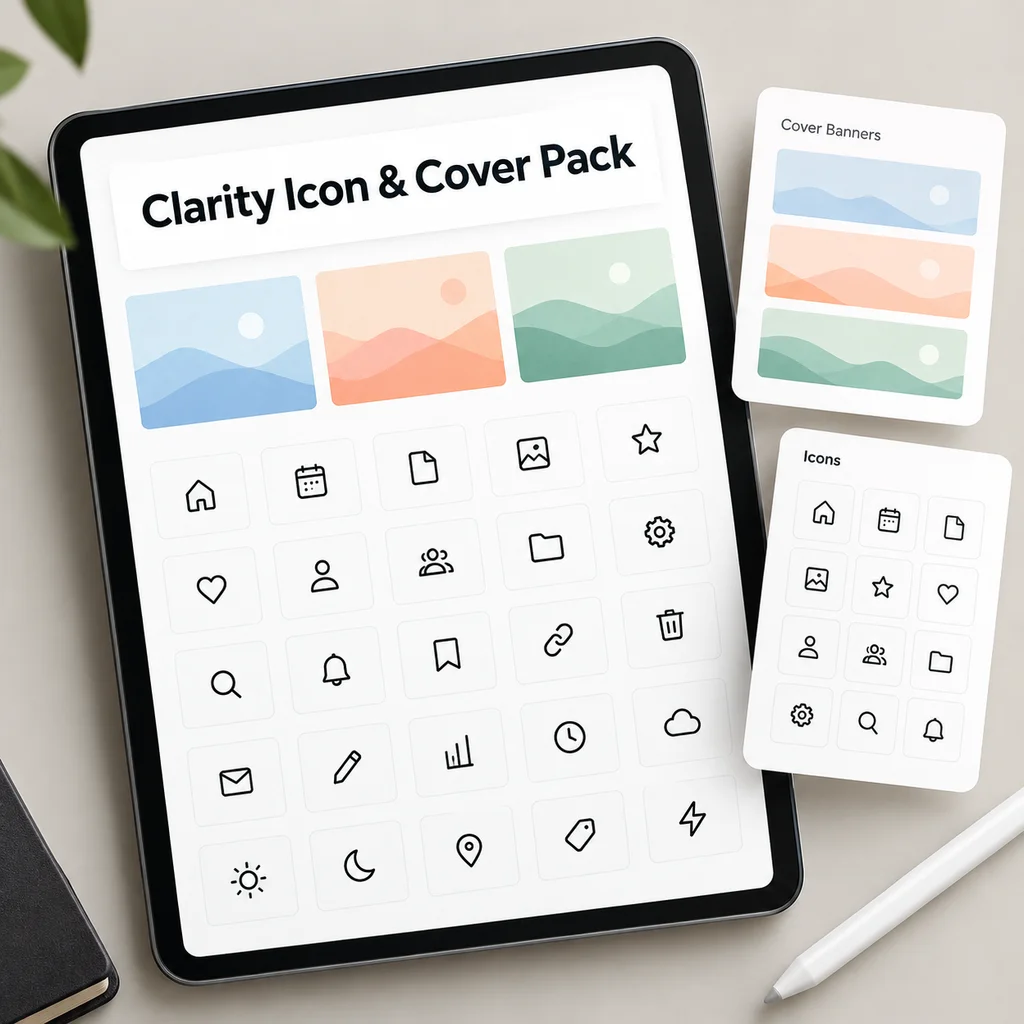
Icons and covers should help you find things, not decorate everything. A consistent set makes a workspace easier to scan: you recognize Tasks, Projects and Notes by their symbols before you read the names. A random collection of emoji and full-width photos does the opposite. This guide covers how to add icons and covers, how to choose a style, and a simple system to keep the result clean.
What icons and covers do
- Icons appear next to page titles in the sidebar, in links and in database cards. They are small, so what matters is that they are distinct and consistent.
- Covers are the banner at the top of a page. They are large, appear only on the page itself and in gallery views, and set the mood.
Neither changes how a page works. The benefit is speed: a good icon lets you spot a page in a long sidebar in a glance.
How to add them
Icons
- Hover over the page title and click Add icon, or type `/icon`.
- Choose an emoji, an icon from Notion's built-in set, or upload your own image.
- For uploads, a square image with a transparent background works best.
Covers
- Hover over the title and click Add cover.
- Choose from the gallery, paste a link or upload an image.
- Use Reposition to adjust which part of the image shows.
Database icons and covers can also be set on individual rows, which is useful in gallery views, for example showing a book cover for each reading item.
Choosing a style
Pick one style and apply it everywhere. Four options:
| Style | Looks like | Good for |
|---|---|---|
| Emoji | Colorful, built in | Quick setup, informal workspaces |
| Line icons | Thin outlines in one color | Minimal, professional look |
| Filled glyphs | Solid single-color shapes | Strong contrast, small sizes |
| Illustrated | Detailed drawings | Gallery views, personal projects |
The common mistake is mixing them: some emoji, some line icons, some illustrations. Mixed styles make a workspace look unfinished even when each icon is nice.
Light and dark mode
If you use dark mode, test your choices there.
- Icons with a transparent background adapt to either mode.
- Dark icons on a dark background disappear; light icons on a light background do the same.
- Some people keep two versions of each icon, one for each mode, and use the one that matches their setting.
- Default Notion colors adapt automatically; custom colors may not.
A simple system
Use rules, and you rarely need to decide.
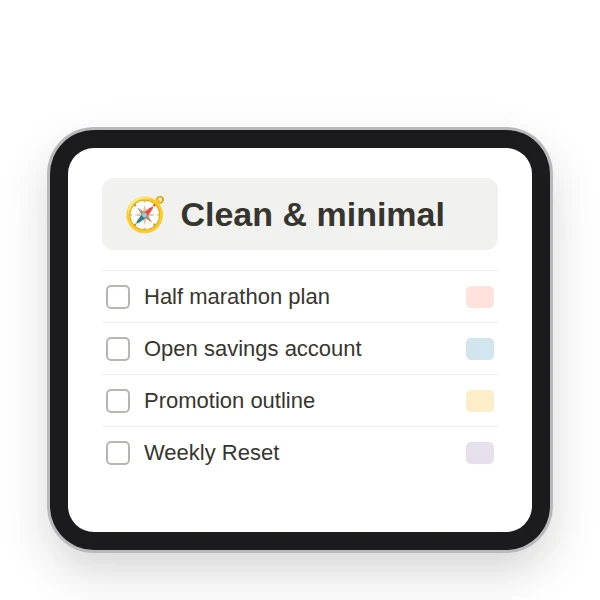
- One icon per database, chosen when you create it. Keep it for good.
- Sidebar pages get icons, inner pages usually do not.
- Covers only on pages you open often, such as the dashboard and project pages.
- One cover style: for example, soft gradients or one photo category.
- Never decorate for the sake of it. If you cannot say what the icon helps you find, leave it blank.
Example icon map
| Page or database | Icon idea |
|---|---|
| Dashboard | Home |
| Areas | Compass |
| Goals | Target |
| Projects | Folder or rocket |
| Tasks | Checkmark |
| Notes | Document |
| Resources | Bookmark |
| Habits | Repeat or flame |
| Journal | Notebook |
| Weekly Reset | Circular arrows |
Covers that do not get in the way
- Choose images with low detail near the center, so titles remain readable.
- Prefer muted tones over saturated ones, which strain the eyes in a long session.
- Use a few covers repeatedly, instead of a new image per page.
- Check that the cover looks fine on mobile, where the crop differs.
For where decoration belongs on a home screen, see the dashboard guide. If you feel the workspace has become too busy, the page on why Notion feels complicated lists what to cut first.
Common icon and cover mistakes
- Using emoji and uploaded icons side by side. Pick one source and stay with it.
- Putting a cover on every page. Covers push content down, so reserve them for pages where mood matters.
- Choosing detailed photos for gallery cards. Fine detail turns to noise at thumbnail size; simple shapes survive.
- Changing the style every month. Each change means redoing dozens of pages. Decide once, and revisit it only if you are rebuilding anyway.
- Forgetting the phone. Check a few pages in the mobile app before applying a style everywhere.
A quick test for any choice: if you shrink the page list to a narrow sidebar, can you still tell each page apart? If you can, the icons are doing their job.
"Aesthetic" without the clutter
People searching for an aesthetic Notion setup usually want something calm. The ingredients are simple:
- Plenty of white space.
- One accent color at most.
- A single icon style.
- Short page titles.
- Few properties visible in each view.
Aesthetics support the work; they are not the work. Do the structure first (see how to organize your Notion workspace), then decorate lightly.
How Clarity OS handles it
Clarity OS is designed to look clean in both modes: it uses only default Notion colors, so light and dark both work. Its 10 connected databases and eight guide pages (Start Here, Dashboard, Quick Capture, Weekly Reset, Journal, Mobile Guide, Customize and Delete Examples) use short plain names, and a Customize page explains how to switch appearance and how to change any icon with `/icon`. The library of 120 page templates in eight categories follows the same plain style.
A separate Icon & Cover Pack, with 120 icons in light and dark versions and 24 covers, is offered as an optional add-on and is not part of the base system. You can follow the rules above with emoji or any set you already have.
Choose one style, apply it consistently and stop decorating once you can find things at a glance.