Notion Formulas Cheat Sheet: 12 Practical Formulas With Explanations
Notion formulas calculate a value in one property from the others. You do not need to be technical to use them: a dozen patterns cover most personal systems. This cheat sheet shows 12 of the ones people reach for most, with a plain explanation of each. Property names in quotes, such as `prop("Due")`, are examples; replace them with your own.
The three ideas behind every formula
- `prop("Name")` reads another property in the same row.
- Functions such as `if`, `now` and `dateBetween` take values and return a result.
- The result type matters: a formula can return text, a number, a date or a checkbox, and you cannot mix them without converting.
Write a formula in a database property of type Formula. Notion shows a preview as you type.
Dates
1. Days left until a target date
`dateBetween(prop("Target date"), now(), "days")`
Returns the number of days from now to the target date. It is positive before the date and negative after it. Use it on goals, exams and deadlines.
2. Show the due date in plain text
`formatDate(prop("Due"), "MMM D, YYYY")`
Turns a date into text such as "Oct 27, 2026". Use it when you want a clean label inside another formula.
3. Month of a date
`formatDate(prop("Date"), "MMMM YYYY")`
Returns something like "October 2026". Group a journal or expense database by this property to get a month-by-month view.
4. Add days to a date
`dateAdd(prop("Date"), 7, "days")`
Returns the date seven days later. Useful for next review dates and follow-ups.
5. Is it due today?
`formatDate(prop("Due"), "YYYY-MM-DD") == formatDate(now(), "YYYY-MM-DD")`
Compares today's date and the due date as text. It returns true or false, so you can filter on it.
Status labels
6. Overdue label
`if(prop("Status") != "Done" and prop("Due") < now(), "Overdue", "")`
Shows "Overdue" when a task is not done and the due date has passed, and nothing otherwise. Read it as: if not done and late, say Overdue; otherwise say nothing.
7. Streak badge
`if(prop("Current streak") >= 21, "🔥 21+", if(prop("Current streak") >= 7, "7+", "Building"))`
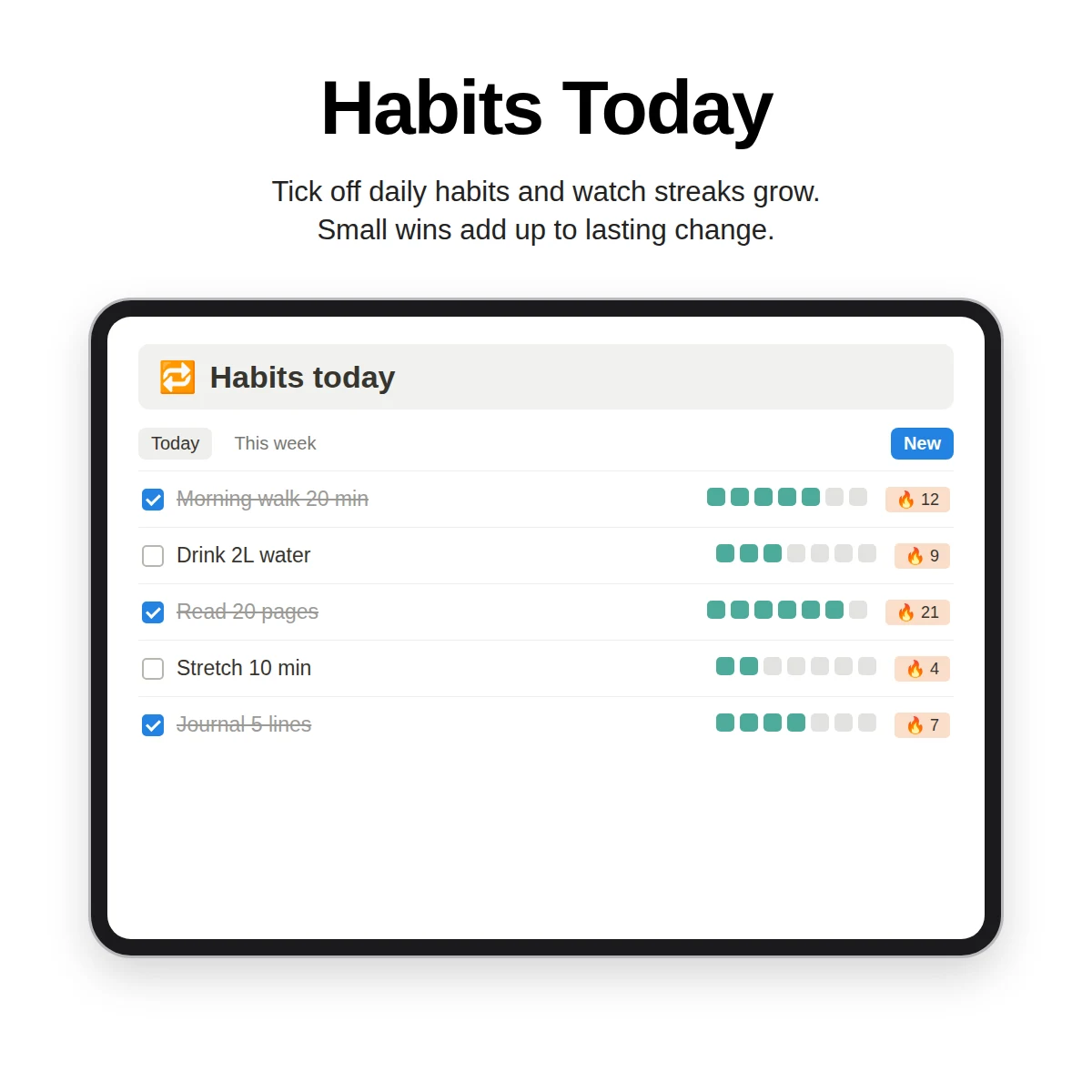
This is a nested `if` (Clarity OS also adds a small emoji before each label): it checks the larger threshold first and falls back to the smaller one. Change the numbers to fit your habit. For habit design see the habit tracker guide.
8. Check or cross
`if(prop("Done"), "✅", "⬜")`
Turns a checkbox into a visible symbol, handy for compact lists.
Numbers
9. Remaining budget
`prop("Planned") - prop("Actual")`
The simplest useful formula: how much is left in a category. For a fuller budget layout, see the Notion budget guide.
10. Percent progress
`round(prop("Saved") / prop("Target") * 100)`
Returns a whole-number percentage. Pair it with a number property displayed as a bar or ring for a quick visual. If the target can be zero, add a check: `if(prop("Target") == 0, 0, round(prop("Saved") / prop("Target") * 100))`.
Text
11. Combine text
`prop("First name") + " " + prop("Last name")`
Joins two text properties with a space. The same pattern builds titles like "Week of" plus a date.
12. Flag empty fields
`if(empty(prop("Next step")), "Add next step", "")`
Shows a reminder when a field is blank. Use it to keep projects from stalling without a next action.
Rollups vs formulas
People often confuse the two.
| Formula | Rollup | |
|---|---|---|
| Looks at | Properties in the same row | Properties in linked rows of another database |
| Example | Days left on a goal | Percent of a project's tasks that are done |
| Needs | Nothing else | A relation |
Use a formula for calculations inside a row, and a rollup to summarize related rows, such as a project's open tasks.
Troubleshooting
- Wrong property name. Names are case sensitive and must match exactly.
- Text versus number. Wrap numbers in `format()` to join them to text, and use `toNumber()` for the reverse.
- Empty values. A blank date or number can give an error or zero. Use `empty()` to check first.
- Long formulas. Break them into two properties, one for each step, which is easier to debug.
- Decimals. Use `round()` to tidy results.
Where to go from here
Practice on a real need: add "days left" to your goals, then an overdue label to your tasks. Once those feel natural, explore date arithmetic for planning layouts. If you are new to databases in general, start with the beginner tutorial.
Ready-made formulas
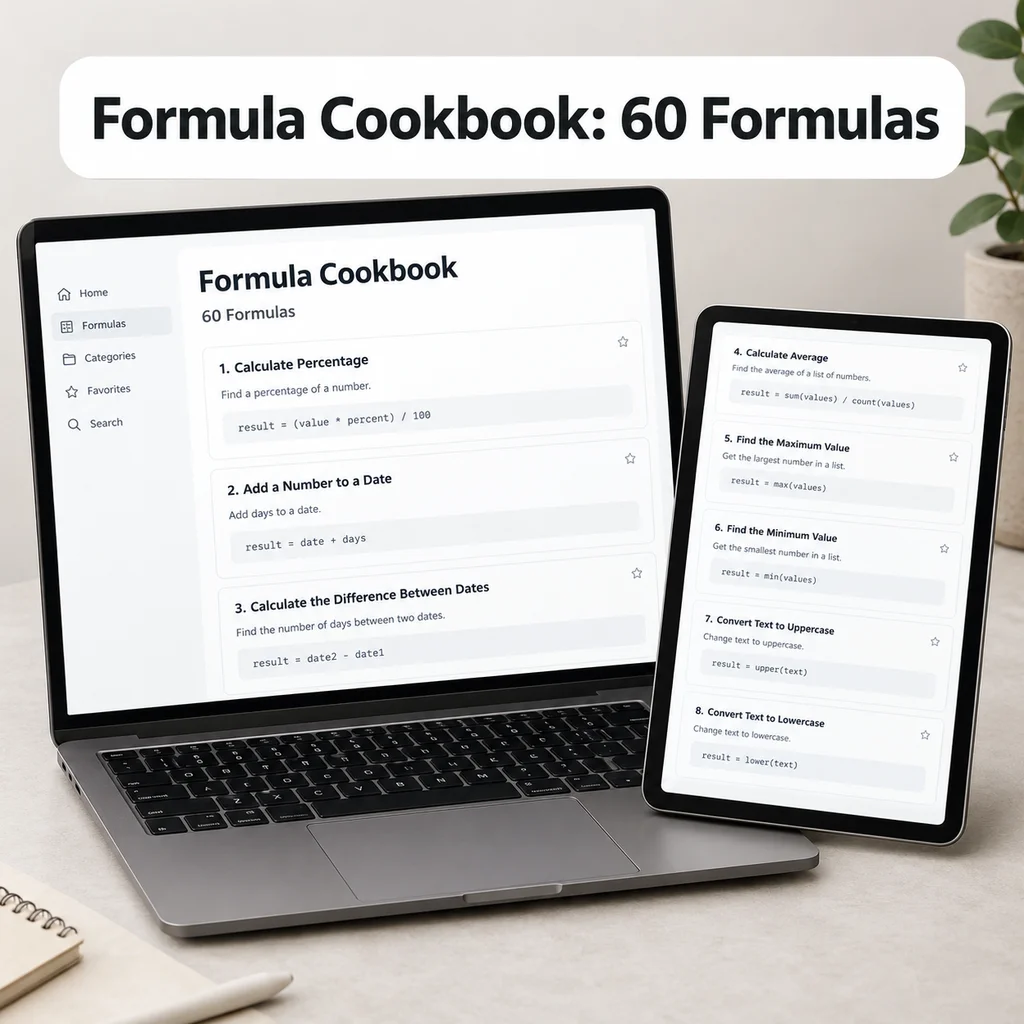
Clarity OS includes several of the formulas above already set up: days left on goals, an overdue label and a due-today check on tasks, the streak badge on habits, a month label on journal entries and rollups for project progress and average energy. For more, the Notion Formula Cookbook is included as a bonus PDF with 60 formulas, so you can adapt ready-made patterns instead of starting from scratch.
Start with two formulas, learn how they read, and add one at a time.