Digital Planner for iPad: Apps, Layouts and Setup
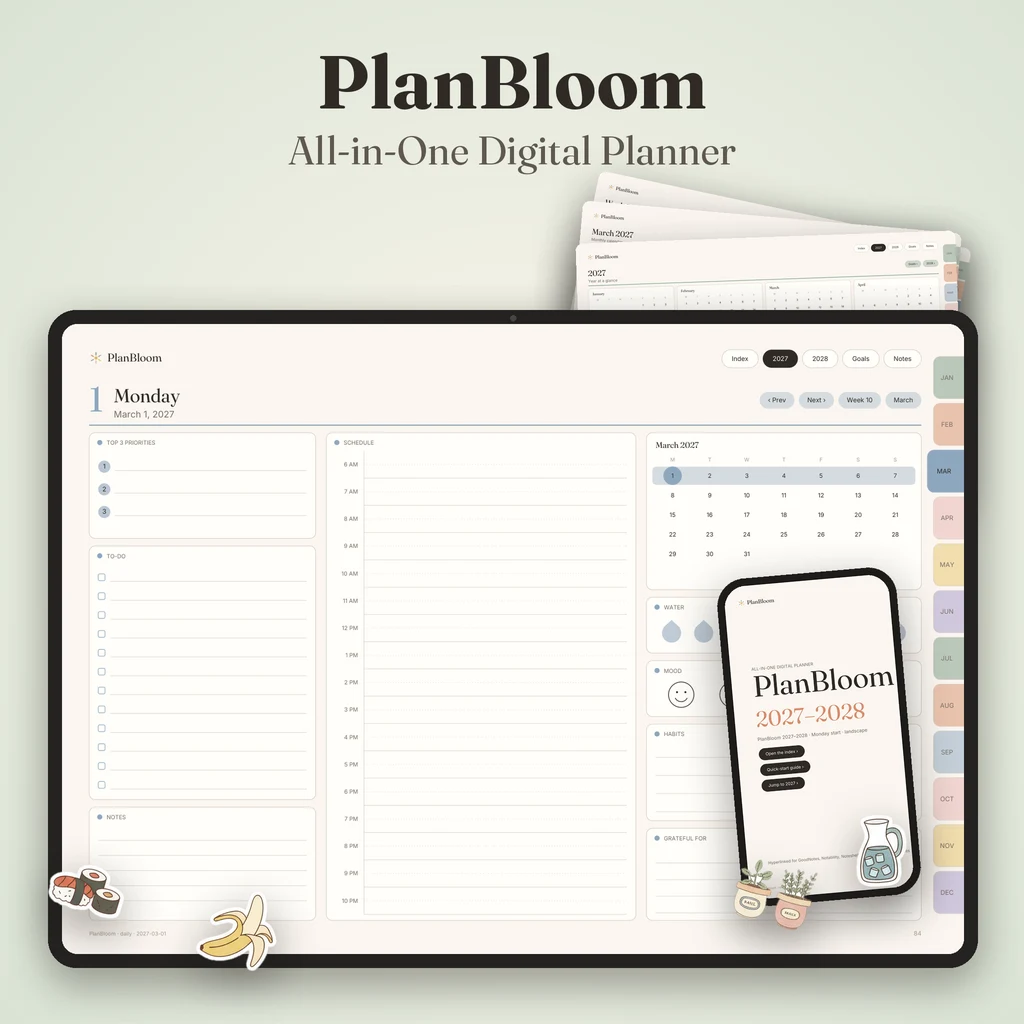
For an iPad, choose a hyperlinked PDF planner in the orientation that fits how you hold the device, import it into a notes app such as GoodNotes, Notability, Noteshelf or Xodo, and use reading mode to tap links and the pen to write. This guide walks through the choices and the setup, so you can be planning in a few minutes.
Step 1: Choose orientation and week start
Landscape is the wider layout, sized at 1194 × 834 points in PlanBloom All-in-One Digital Planner. It suits an iPad on a stand or with a keyboard, and it gives weekly pages a seven-column spread.
Portrait is the taller layout at 834 × 1194. It feels like a paper planner and gives each daily page more vertical space.
Then choose Monday or Sunday as the first day of the week. This only changes which weekday each week begins with. Many US planners start on Sunday; many work-week planners start on Monday.
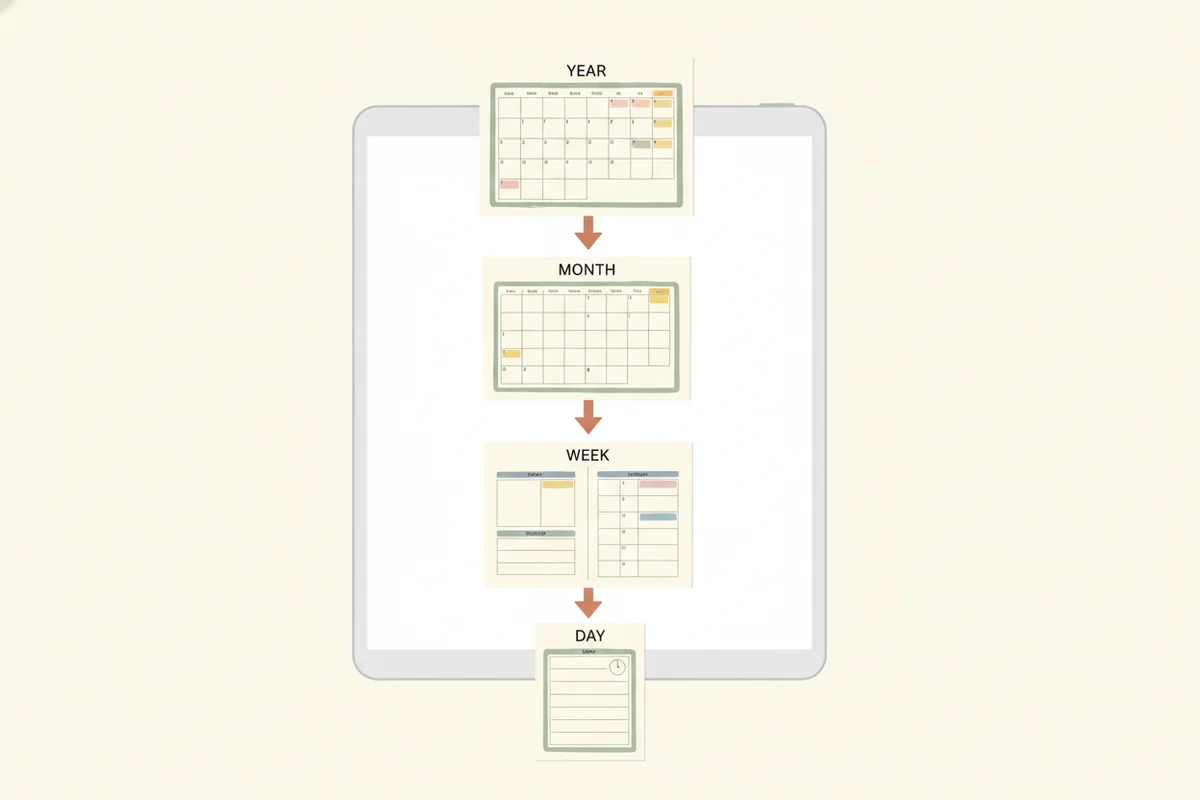
If you aren't sure, try landscape first for the weekly view, and choose portrait if you mainly use daily pages.
Step 2: Dated or undated
A dated planner has every month and day printed. An undated planner leaves date fields blank, so you can begin on any day. PlanBloom All-in-One Digital Planner includes both: a dated 2027-2028 planner and an undated planner, each in four layouts.
Step 3: Pick an app
| App | Notes |
|---|---|
| GoodNotes | Popular for planners; import as a document; see the GoodNotes planner guide |
| Notability | Strong audio and note features; see GoodNotes vs Notability |
| Noteshelf | Handwriting-focused; import from Files |
| Xodo | Good PDF viewer; handy as a backup for navigating links |
All of them open standard PDFs. Plans and prices change, so check each app's store listing.
Step 4: Import the planner
- Save the PDF to Files or iCloud Drive. If you received a ZIP, unzip it first.
- Open your notes app, tap the plus or Import button and choose the PDF.
- Import it as a new document.
- Wait for the pages to load; a large file may take a few seconds the first time.
Keep the original PDF in a safe folder as a master copy so you can start over any time.
Step 5: Tap and write
Most apps separate writing from tapping. In pen mode, a tap draws a dot. In reading or hand mode, a tap follows a link. A simple routine:
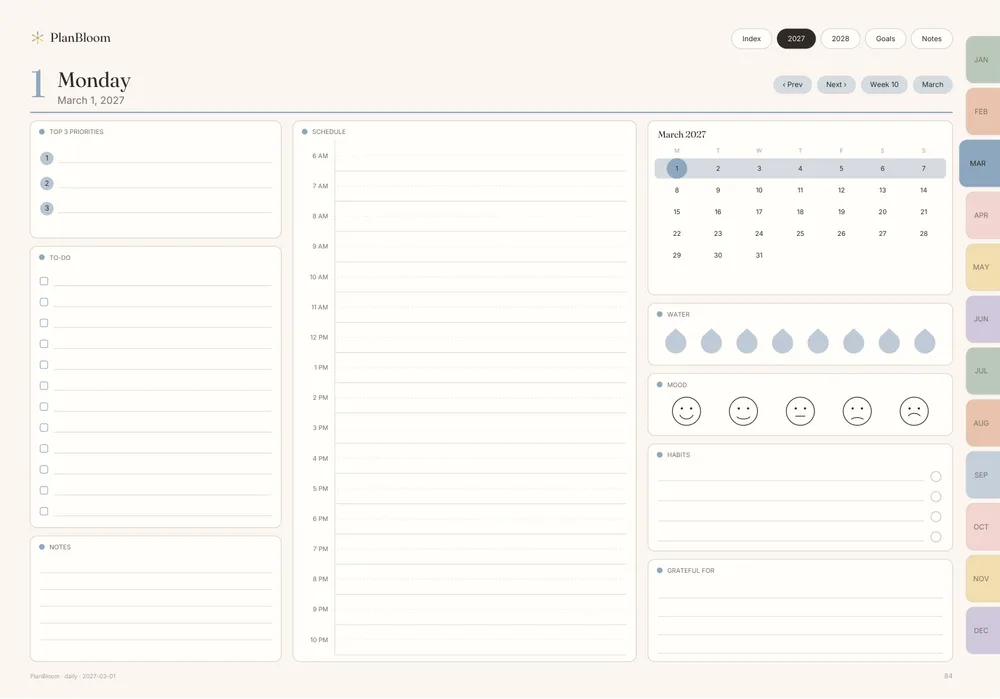
- Open the planner in reading mode and tap to the page you need.
- Pick the pen and write.
- Put the pen away before the next jump.
Don't write on the month tabs or the top bar. They are tap targets.
Tips for a smooth experience
- Use the Index page. It lists months, weeks and notes pages.
- Duplicate pages when you need more space. Links on duplicated pages keep their targets.
- Add a cover. Insert a PNG on page one using your app's image tool.
- Stickers. Transparent PNG stickers can be placed on top of pages; save favorites in the app's sticker library if it has one.
- Back up. Turn on automatic backup and keep the original PDF in cloud storage.
- Update the app. Link support often improves in newer versions.
Why file size matters
A full-year planner with daily pages is a big file: the dated planners in PlanBloom All-in-One Digital Planner are about 12 MB each, while the undated ones are about 6 MB. Large files open quickly in most apps, but the first load can take a moment. If your app has an import cap, check that it fits.
What to look for in an iPad planner
For a shortlist of criteria, see the best digital planner for iPad. In short: real internal links, both orientations, a clear guide for your app, and extras that save time such as notebooks, templates, covers and stickers.
PlanBloom All-in-One Digital Planner includes 48 tabbed notebooks (88 pages each), 120 paper templates, Student and Work packs, 160 digital covers, more than 5,500 stickers and an 18-page Quick-Start Guide. It also has a Companion web app with a setup wizard, Today view, focus timer and habit tracker.
Troubleshooting
| Problem | Fix |
|---|---|
| Links do nothing | Switch to reading mode, update the app, re-import as a new document, or test the file in Xodo |
| Taps draw dots | Put the pen away or switch to hand mode |
| Pages look cut off | Fit the page in the view, or re-import in the correct orientation |
| Import fails | Save the PDF locally first and try again |
Before you buy
The product's own documentation states that link support depends on the app and its version, so test the links when you first import. For a wider introduction, read what is a digital planner.