Digital Planner for Android and Samsung Notes
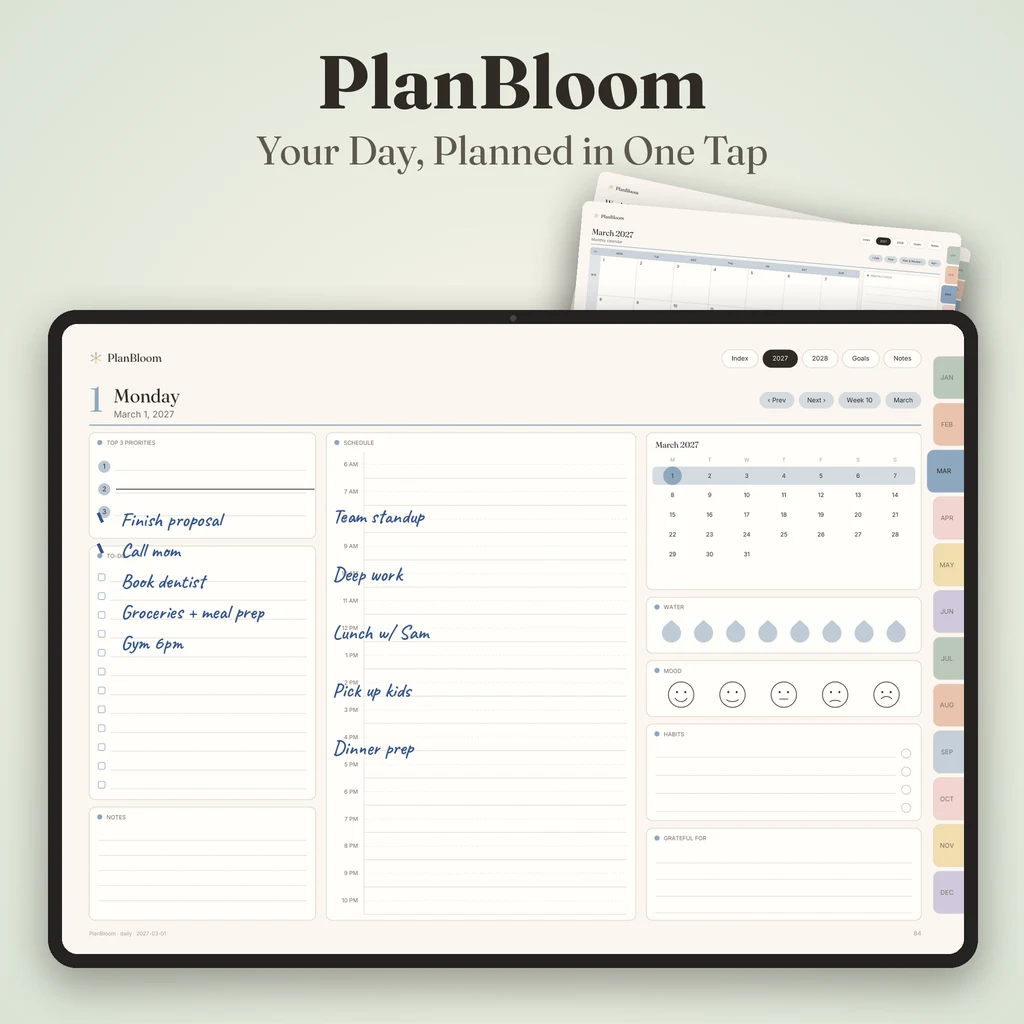
On Android, a hyperlinked PDF planner works in Xodo, Samsung Notes, Noteshelf and other PDF apps. Link support is the part to test: Xodo handles it reliably in view mode, while Samsung Notes treats an imported PDF like a note and internal links may or may not work depending on your version. This guide explains which app to choose and how to set up a planner on Galaxy tablets and other Android devices.
Choosing an app
| App | Best for | Link behavior |
|---|---|---|
| Xodo | Reliable PDF viewing and annotation | Links work in view mode |
| Samsung Notes | Galaxy tablets and S Pen users | Depends on One UI and app version |
| Noteshelf | Handwriting-focused notebooks | Varies by version |
| Any PDF reader | Quick navigation | Links, tabs and outline usually work |
If you want to write with an S Pen, Samsung Notes is convenient. If you want dependable tapping on tabs and dates, Xodo is a safe bet. You can also use both: write in one app and navigate in the other.
Step 1: Pick the file
Choose orientation (landscape for a Galaxy tablet on a keyboard or stand, portrait for a paper-like feel) and week start (Monday or Sunday). Decide between dated and undated; undated is forgiving if you start mid-year. The Quick-Start Guide in PlanBloom All-in-One Digital Planner explains the file names so you can tell them apart, for example `PlanBloom-Planner-2027-2028-Landscape-Monday.pdf`.
Step 2: Save and import
Xodo
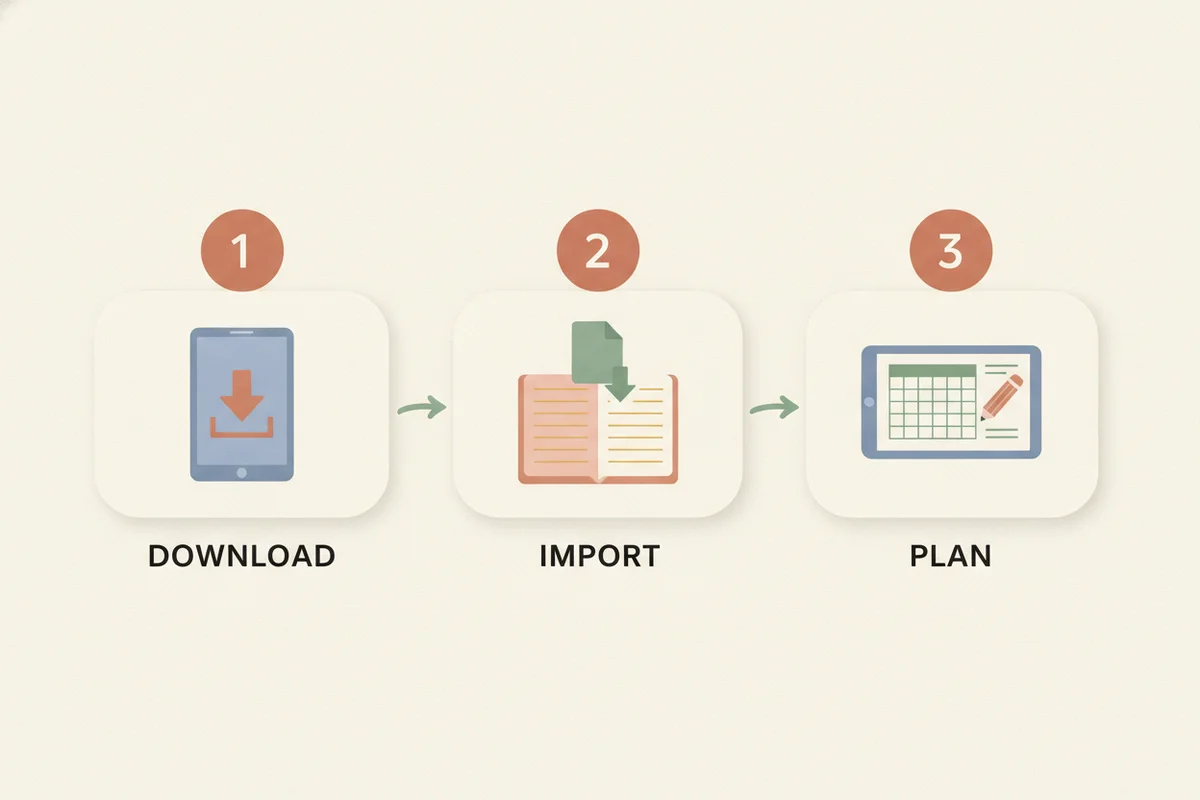
- Save the PDF to your device or cloud storage.
- Open Xodo and tap Open or the plus button.
- Select the file. It shows its pages and outline.
Samsung Notes
- Save the PDF to My Files or Google Drive on the Galaxy device.
- Open Samsung Notes, then the menu or plus button, and choose Import or Add PDF.
- Pick the file; it opens as a note with the PDF pages.
Step 3: Test the links
Samsung Notes treats an imported PDF like a note. Internal links may work, or may not, depending on your One UI and Samsung Notes version. Try tapping a month tab with a finger while the pen isn't drawing. If nothing happens:
- Update Samsung Notes and your system software.
- Re-import the file.
- Try the same PDF in Xodo to use its links, and use Samsung Notes only to write.
The Quick-Start Guide in PlanBloom All-in-One Digital Planner includes this warning, so you know what to expect.
Using the planner on phones and computers
A planner works on a phone as a quick lookup, though handwriting is better on a tablet. On Windows, Mac and Linux, open the PDF in Acrobat Reader, Preview, Edge, Chrome, Firefox or Xodo. Tabs, dates and the outline work in a PDF reader with no setup. Annotate with the reader's pen or highlighter tools if you like.
Sync between devices
Keep the master PDF in Google Drive, OneDrive or iCloud Drive, and open it on each device. Be careful: if you write on separate copies, your notes won't merge. Pick one device for writing, or export an annotated copy before you switch.
Covers, stickers and notebooks
PNG covers and stickers work on Android like they do anywhere: insert them as images. The planner package includes 160 covers, more than 5,500 stickers, 48 tabbed notebooks and 120 paper templates. The placement steps in GoodNotes covers apply to any app.
What about GoodNotes on Android?
Many people searching for "GoodNotes Android" want the same planner experience they've seen on iPad. Goodnotes has widened its platform support over the years, so check the current listing in your store for availability on your device. If it isn't available or doesn't suit you, the planner doesn't depend on it. See does GoodNotes cost money for how its plans work.
Backups
Turn on automatic backup in your app if it offers one, and keep the original PDF in the cloud. Samsung Cloud or Google Drive work for Samsung Notes. Export a copy of your annotated planner now and then, especially before updating the app or your device.
Quick checklist
- Choose landscape or portrait.
- Save the PDF to device storage or cloud.
- Import into Xodo or Samsung Notes.
- Test a tab and a date link.
- If links fail in Samsung Notes, navigate in Xodo.
- Add a cover and a few stickers if you like.
- Back up weekly.
For iPad steps, see the iPad planner guide. To understand what you are importing, read what is a digital planner.