GoodNotes Covers: How to Add Notebook and Planner Covers
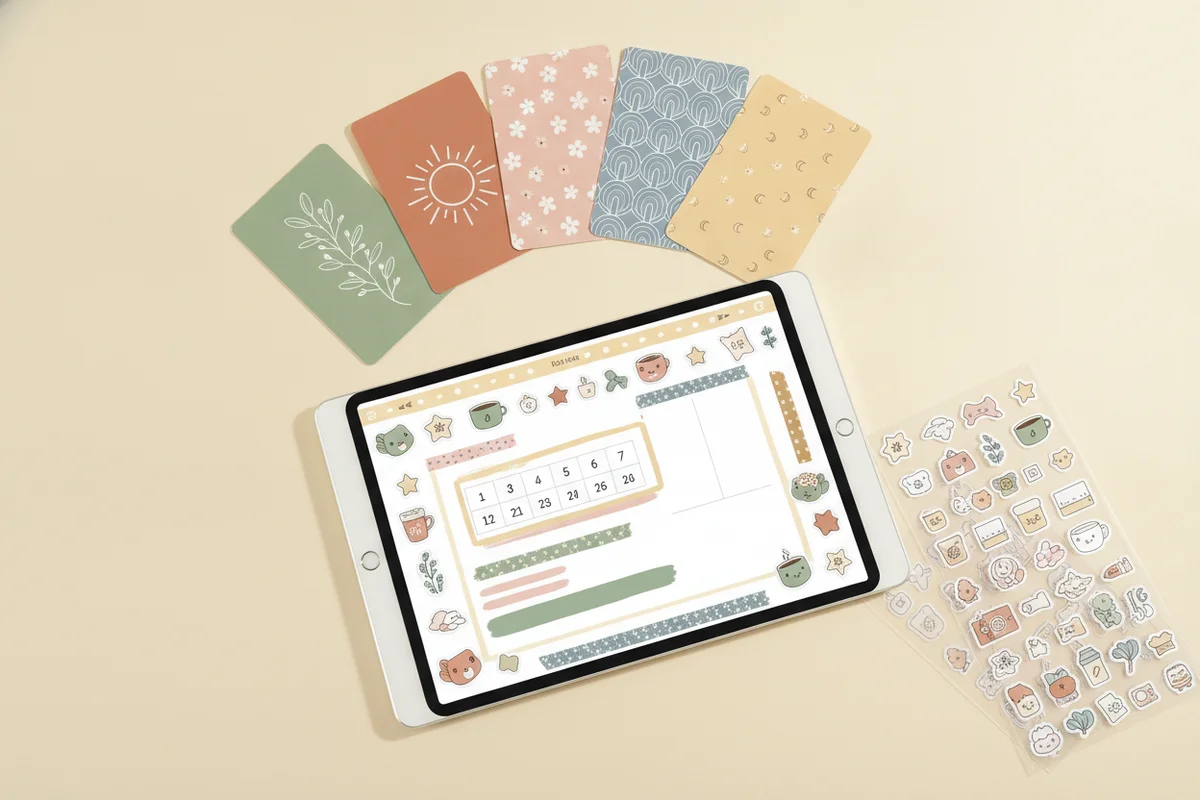
A cover is just an image on the first page of your notebook or planner. Add it with the image tool in your notes app, resize it to fill the page and place it behind or beneath any buttons you want to keep tappable. Covers make notebooks easy to spot in a library of documents and add a little personality to a planner you open every day. This guide covers sizing, adding, matching and organizing covers.
What a cover is
In GoodNotes and similar apps, a document shows a thumbnail of its first page in the library. A "cover" is an image you place on that page to make the thumbnail stand out. Some covers are full-page designs; others are smaller artwork with space for a title.
There are two ways to apply them:
- Place an image on page one. Works in any app that supports image insertion.
- Replace the first page with a cover PDF. Useful if you want the cover to be a real page.
Size and orientation
A cover should match your page size, or it will have blank borders. The planner files in PlanBloom All-in-One Digital Planner use 1194 × 834 points for landscape and 834 × 1194 for portrait. Covers designed for landscape documents should be wider than tall, and covers for portrait documents should be taller than wide. If your document is a different size, scale the image to fit, keeping the proportions.
PNG or PDF?
| Format | Best for |
|---|---|
| PNG | Placing as an image, adding text on top, using transparency |
| Replacing page one entirely |
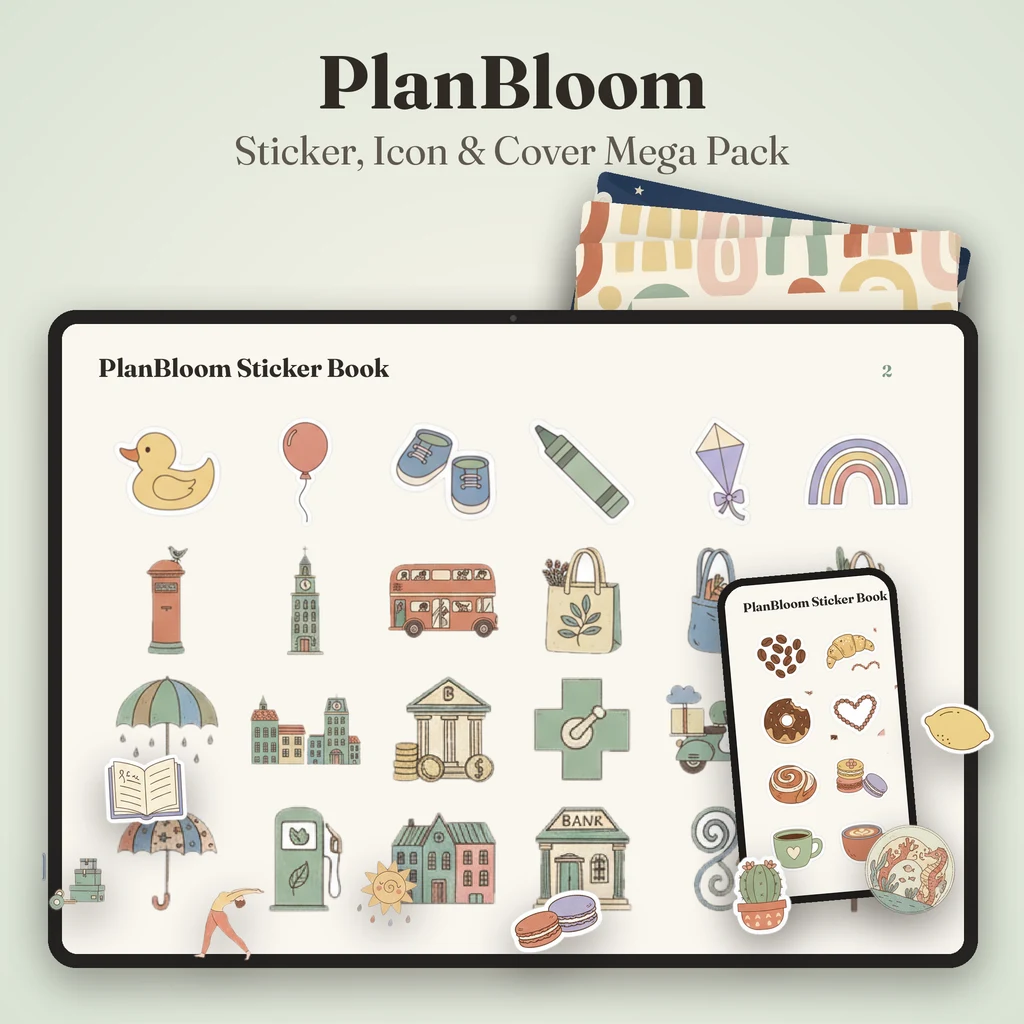
Most downloadable cover sets come as PNG. The covers in PlanBloom All-in-One Digital Planner are delivered as PNG files, 160 of them.
How to add a cover (the general steps)
- Save the cover images to Photos or Files.
- Open your planner or notebook and go to page one.
- Use the image or photo tool and select the cover file.
- Drag the corners to fill the page, or leave a small margin.
- Lock or flatten the image if your app offers it, so it doesn't move when you write.
The Quick-Start Guide included with PlanBloom All-in-One Digital Planner has a page about adding covers with the same pattern. Menu names differ between apps, so look for the same idea: insert image, resize, lock.
Keeping planner links working
A planner's first page usually has navigation buttons. If a large cover covers them, the links under it will not respond. Options:
- Use a cover with a margin so the top bar remains visible.
- Place the image behind the ink layer if your app allows.
- Add the cover to a separate first page, leaving the planner's cover page intact.
Check that a month tab still works after you place the cover. Read the GoodNotes digital planner guide for how links behave in reading mode.
Matching sets and themes
If you use several documents, consistent covers help you scan your library. Ideas:
- By color: one color per area of life, such as sage for home, blue for work, blush for personal.
- By theme: floral, minimal, geometric, watercolor.
- By year: one planner cover for 2027, another for 2028.
- By purpose: notebooks for classes, projects, journaling.
PlanBloom All-in-One Digital Planner has 160 covers, and some include an empty title box so you can add your own text by hand. Some people like the clean look of a hand-lettered title.
Making your own
If you want a custom cover, a design tool can export a PNG at your page size. Keep the file under a few megabytes so documents stay light. Make sure you have the right to use any images and fonts you include.
Covers vs stickers vs templates
- Covers decorate the front.
- Stickers decorate or label the pages inside. See GoodNotes stickers.
- Templates provide page layouts. See GoodNotes templates.
All three are images or PDFs that you add on top of your notes app. They don't depend on a specific plan; check your app's limits if you add large files.
Tips
- Keep the original cover file; if you ever re-import a planner, you can place it again.
- Test on one notebook before you decorate all of them.
- Don't cover the page number or tab areas of a planner.
- Duplicate a cover for a new notebook and change only the title.
- Back up your documents after decorating.
With a cover chosen, you can move on to the planner itself or to the templates inside your notebooks.